***
title: Banners
'og:site\_name': Unleash Documentation
'og:title': Banners - Display instance-wide messages to all users
description: >-
Banners allow you to configure and display instance-wide messages to all users
of your Unleash instance. These messages appear at the top of the Unleash UI
and can be configured to be interactive.
keywords: 'banners, notifications, announcements, messages, admin'
max-toc-depth: 3
----------------
Banners allow you to configure and display instance-wide messages to all users of your Unleash instance. These messages appear at the top of the Unleash UI and can be configured to be interactive.
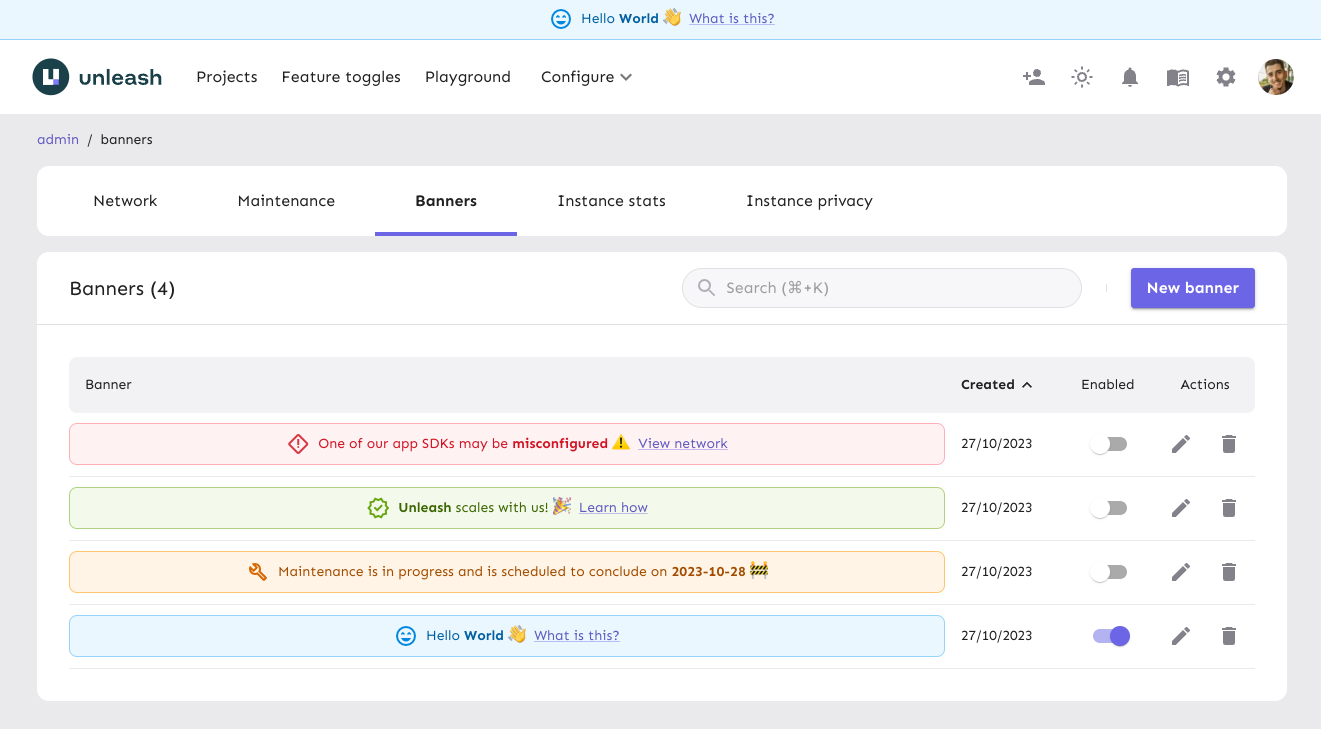
A common use case for banners is to pre-configure messages that you can enable when needed. For example, you might have a banner for scheduled maintenance or another to announce a user survey.
Banners can be enabled or disabled at any time.
## Create a banner
To create a banner in the Admin UI, do the following:
1. Go to **Admin settings > Instance config > Banners**.
2. Click **New banner**.
3. Configure the status, type, icon, message, action, and whether the banner should be sticky.
4. Click **Add banner**.
Once created, if the banner's status is set to enabled, the banner is immediately visible to all users in your Unleash instance.
## Configure the banner
| Option | Description | Values / Format |
| :------ | :---------------------------------------------------------------------------------------------- | :--------------------------------------------------------------------------------------------- |
| Type | Sets the banner's style (color and default icon). | `Information`, `Warning`, `Error`, `Success` |
| Status | Whether the banner is enabled and showing for all users of the instance. | Enabled or disabled |
| Icon | Icon displayed on the banner. | `Default` (matches banner type), `None` (hidden), `Custom` ([custom icon](#use-a-custom-icon)) |
| Message | Main text content of the banner. | Text format; supports [Markdown](https://www.markdownguide.org/basic-syntax/) |
| Action | Adds interactivity to the banner using a link or a dialog. | `None`, `Link`, `Dialog` |
| Sticky | Whether the banner remains fixed at the top of the Unleash UI, even when users scroll the page. | Enabled or disabled |
### Use a custom icon
To further personalize your banner, you can use any icon from the [Material Symbols](https://fonts.google.com/icons) library.
To use a custom icon:
1. In the banner configuration, select **Custom** from the **Icon** dropdown menu.
2. In the **Banner icon** field, enter the name of the desired Material Symbol. For example, to use the "Rocket Launch" icon, enter `rocket_launch`.
### Configure a link action
This action displays a link on the banner that directs users to a specified URL.
* **Absolute URLs** (for example, `https://docs.getunleash.io/`) open in a new browser tab.
* **Relative URLs** (for example, `/admin/network`) open in the same tab.
| Option | Description |
| :----- | :--------------------------------------------- |
| URL | The URL the banner link should navigate to. |
| Text | The text displayed for the link on the banner. |
### Configure a dialog action
This action displays a link on the banner that, when clicked, opens a dialog box with additional information.
| Option | Description |
| :------------- | :------------------------------------------------------------------------------------------------------------------ |
| Text | The text displayed for the link on the banner. |
| Dialog title | The title displayed at the top of the dialog box. |
| Dialog content | The main content displayed within the dialog box. Supports [Markdown](https://www.markdownguide.org/basic-syntax/). |