***
title: Getting started
description: Initial steps for setting up a self-hosted Unleash instance with Docker.
max-toc-depth: 3
'og:title': Getting started
'og:site\_name': Unleash
------------------------
Unleash offers several [hosting options](/deploy/hosting-options), including fully self-hosted setups. This guide helps you set up Unleash Open Source or Unleash Enterprise in your own environment using Docker.
Alternatively, for Unleash Enterprise, you can sign up for a [cloud-hosted instance](https://www.getunleash.io/pricing).
You can set up Unleash in your environment using two main approaches with Docker:
* **Docker Compose:** This method relies on a Docker Compose file to define and manage the Unleash server and its database, simplifying the setup and startup process.
* **Docker CLI:** This method gives you more direct control by using individual `docker` commands to set up the network and run the Unleash and database containers separately.
## Start Unleash server
### Using Docker Compose
To start the Unleash server, clone the Unleash repository and start the server with [Docker Compose](https://docs.docker.com/compose/):
```shell
git clone git@github.com:Unleash/unleash.git
cd unleash
docker compose -f docker-compose-enterprise.yml up -d
```
This pulls the `unleashorg/unleash-enterprise` Docker image and uses a Docker Compose file to configure the Unleash server and its database.
```shell
git clone git@github.com:Unleash/unleash.git
cd unleash
docker compose up -d
```
This pulls the `unleashorg/unleash-server` Docker image and uses a Docker Compose file to configure the Unleash server and its database.
This step uses `docker compose` (V2 syntax). If you have the older `docker-compose` (V1), use that command syntax instead.
### Using Docker CLI
This method involves running separate containers for PostgreSQL and Unleash and connecting them manually via a Docker network.
#### Create Docker network
This allows the Unleash container to communicate with the database container by name.
```shell
docker network create unleash
```
#### Start PostgreSQL database container
This command starts a PostgreSQL container, sets up the necessary user, `unleash_user` and database `unleash`, assigns a password, and connects it to the `unleash` network.
```shell
docker run -d \
-e POSTGRES_PASSWORD=your_secure_password \
-e POSTGRES_USER=unleash_user \
-e POSTGRES_DB=unleash \
--network unleash \
--name postgres \
postgres:17 # or any 14+ version
```
#### Start Unleash server container
This command starts the Unleash server, maps port `4242` on your host to the container, connects to the PostgreSQL database you started, disables database SSL, connects to the `unleash` network, and ensures you have the latest image.
```shell
docker run -d -p 4242:4242 \
-e DATABASE_HOST=postgres \
-e DATABASE_NAME=unleash \
-e DATABASE_USERNAME=unleash_user \
-e DATABASE_PASSWORD=your_secure_password \
-e DATABASE_SSL=false \
--network unleash \
--name unleash \
--pull=always \
unleashorg/unleash-enterprise
```
```shell
docker run -d -p 4242:4242 \
-e DATABASE_HOST=postgres \
-e DATABASE_NAME=unleash \
-e DATABASE_USERNAME=unleash_user \
-e DATABASE_PASSWORD=your_secure_password \
-e DATABASE_SSL=false \
--network unleash \
--name unleash \
--pull=always \
unleashorg/unleash-server
```
## Log in to the Unleash Admin UI
In your browser, go to [http://localhost:4242](http://localhost:4242) and log in using the following credentials:
* **username**: `admin`
* **password**: `unleash4all`
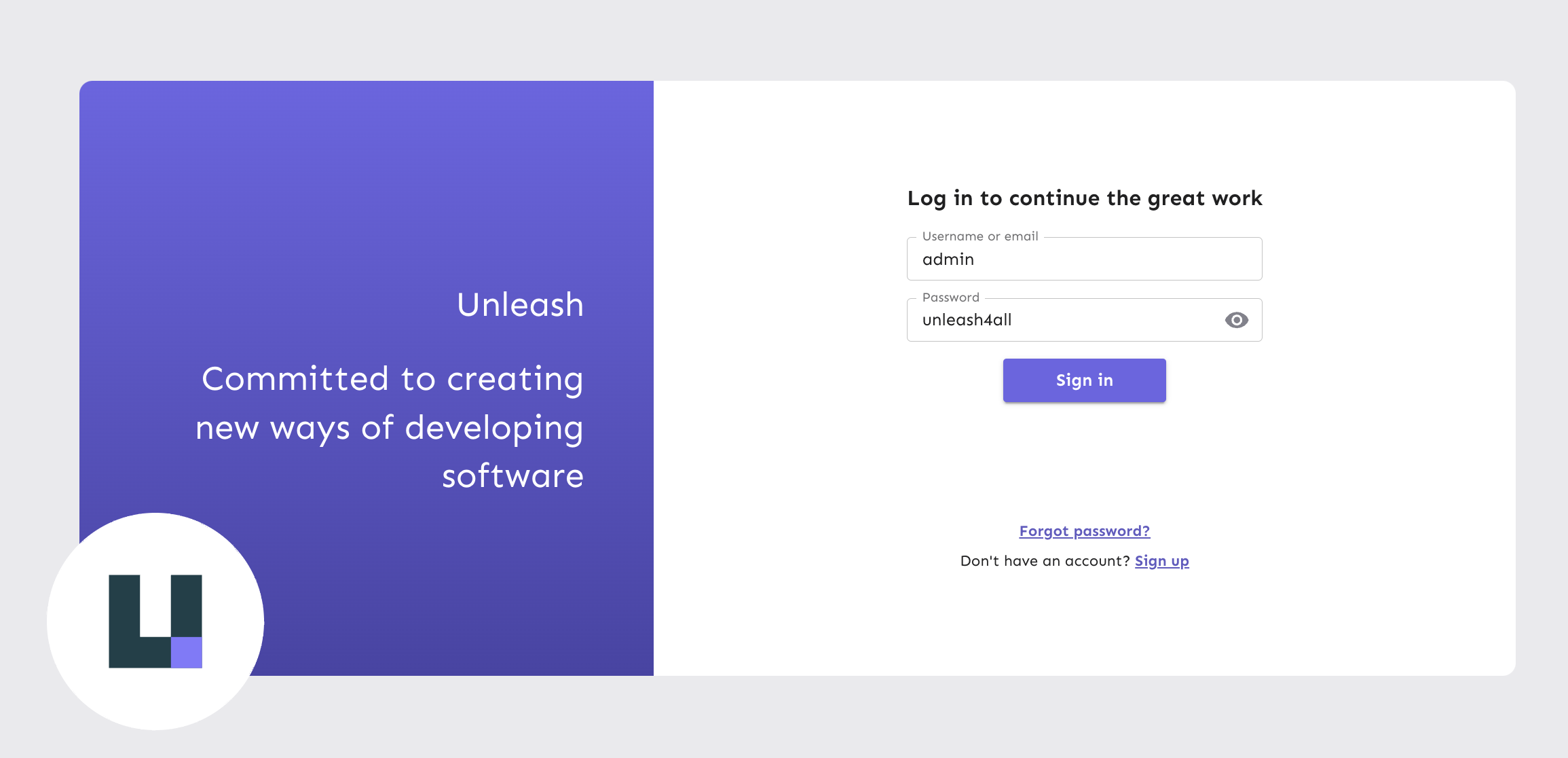
The first time Unleash starts, it creates this default `admin` user. To use different credentials for the initial admin user, set the following environment variables before starting the Unleash container for the first time:
* `UNLEASH_DEFAULT_ADMIN_USERNAME=`
* `UNLEASH_DEFAULT_ADMIN_PASSWORD=`
### Install your license
If you are running Unleash Enterprise, you need to install a [license key](/deploy/license-keys#get-a-new-license). You'll receive a license key as part of your trial or from your account representative.
In the Admin UI, go to **Admin > License**, copy the license key you received by email and click **Update license key**.
In your browser, go to [http://localhost:4242](http://localhost:4242) and log in using the following credentials:
* **username**: `admin`
* **password**: `unleash4all`

The first time Unleash starts, it creates this default `admin` user. To use different credentials for the initial admin user, set the following environment variables before starting the Unleash container for the first time:
* `UNLEASH_DEFAULT_ADMIN_USERNAME=`
* `UNLEASH_DEFAULT_ADMIN_PASSWORD=`
## Test your server connection
You can quickly test if your server is running and accepting API requests using `curl`. For example, you can attempt creating a feature flag via the [Admin API](/get-started/unleash-overview#admin-api). Replace `` with a valid [API token](/concepts/api-tokens-and-client-keys) and adjust the URL `http://localhost:4242` if needed.
```shell
curl --location --request POST 'http://localhost:4242/api/admin/features' \
--header 'Authorization: ' \
--header 'Content-Type: application/json' \
--data-raw '{
"name": "Test Feature Flag",
"description": "Feature flag for testing",
"type": "release",
"enabled": false,
"stale": false,
"strategies": [
{
"name": "default",
"parameters": {}
}
]
}'
```
## Disable version check
By default, your self-hosted Unleash instance periodically checks [https://version.unleash.run](https://version.unleash.run) to inform you about new releases. This check sends a unique, anonymous instance ID.
If you prefer to disable this version check, set the environment variable `CHECK_VERSION` to `false` before starting the Unleash server.