

Migrating from Unleash Open Source to Unleash Enterprise
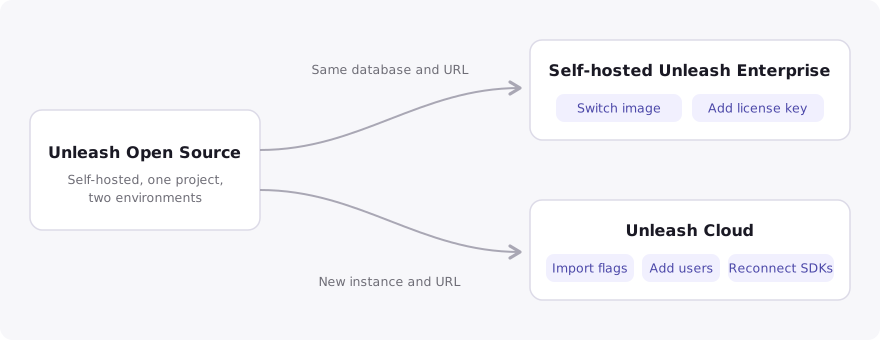
Learn how to move from a self-hosted Unleash Open Source instance to Unleash Enterprise. The right approach depends on where your Enterprise instance will run:
- To keep hosting Unleash yourself, upgrade your existing instance in place. You switch the Docker image, add a license key, and keep your database, users, API tokens, and SDK connections.
- To move to Unleash Cloud, including the pay-as-you-go plan, set up a new instance and move your configuration into it. You import your flags, add your users, create new API tokens, and point your applications at the new instance.
If you are coming from LaunchDarkly, another provider, or a homegrown system, see Migrating to Unleash instead. For a feature-by-feature comparison of the two editions, see Unleash Open Source and Unleash Enterprise comparison.
Choose a migration path
Both paths give you the full Enterprise feature set. They differ in how much of your existing setup carries over automatically.
For help deciding between self-hosted, hybrid, and cloud-hosted setups, see hosting options.
Both migration paths keep your percentage rollouts stable. Unleash assigns users to rollout buckets with the same hashing algorithm in every edition, so a user who is inside a 25% rollout today stays inside it after the migration, as long as the flag name and stickiness stay the same.
Migrate to self-hosted Unleash Enterprise
The Enterprise Docker image runs against the same PostgreSQL database as the open-source image. Switching images upgrades your instance in place: every flag, strategy, user, API token, and connected application continues to work, and your Unleash URL stays the same.
Prerequisites
- A license key. You receive one as part of your Enterprise trial or from your account representative.
- Access to the environment that runs the instance, such as your Docker host, Docker Compose file, or Helm values, to change the image and set the
UNLEASH_LICENSEenvironment variable. If you prefer to install the license through the Admin UI instead, you also need Admin access to the instance. - A recent backup of your Unleash database.
Switch to the Enterprise image
Back up your database with pg_dump before you change anything, as you would before any upgrade.
Replace the image reference unleashorg/unleash-server with unleashorg/unleash-enterprise in your Docker Compose file, docker run command, or Helm values. Use the tag for the minor version you run today, for example 8.3. The two images publish patch releases independently, so patch numbers may differ. If you also want to move to a newer major version, do that as a separate step and follow the upgrade guide.
If you deploy with the Helm chart, update the image references in your values file. The chart’s defaults point to the open-source image.
Provide the license key. Set it as the UNLEASH_LICENSE environment variable, stored as a secret in your deployment tooling, or paste it into Admin settings > Instance config > License after the instance starts. Until a valid license is installed, the instance runs in read-only mode and the only available action is to add the license. See license keys for seat counts, expiration, and renewals.
Set up Enterprise capabilities
Your applications need no changes. Once the instance runs the Enterprise image, you can start using the capabilities that open-source Unleash does not include:
- Single sign-on and SCIM provisioning, so your team signs in through your identity provider.
- Additional projects and environments. Open-source instances are limited to one project and two environments, so this is usually the first thing teams change. See organize feature flags for guidance.
- Project roles, custom roles, and user groups through role-based access control, and change requests for approval workflows.
- Unleash Enterprise Edge for scaling SDK traffic and serving frontend applications.
- Service accounts, so scripts and the Terraform provider run with their own identity instead of a personal access token.
The user management and access controls guide walks through authentication, roles, and auditing for an Enterprise instance.
Migrate to Unleash Cloud
Unleash Cloud is a new instance with a new URL, so the migration moves configuration from your open-source instance into it rather than upgrading in place. The work falls into four areas: setting up the instance, bringing your users, moving flag configuration, and reconnecting your applications and integrations. Your applications keep working against the open-source instance until you move them, so there is no downtime.
The table shows what carries over and how:
An AI coding assistant such as Claude Code, GitHub Copilot, or Cursor can take over much of the mechanical work. Ask it to find every place in your codebases, Helm values, and CI configuration where the Unleash URL and API tokens are set, to script the export and import against the Admin API when you have more flags than fit in one file, and to compare Playground results between the two instances. With the Unleash MCP server connected, the assistant can also list the projects and flags on your Unleash Cloud instance to verify that the import is complete. Review the resulting changes before you deploy them.
Prerequisites
- An Unleash Cloud instance. Start a pay-as-you-go plan or free trial, or ask your account representative for an instance on an annual contract. The person who signs up becomes the first Admin.
- Admin access to your open-source instance, to export flags and to read the configuration you need to recreate.
- A list of the applications, Edge instances, CI jobs, and integrations that connect to your open-source instance. Configure > Applications on the open-source instance shows the SDKs that currently report in.
Set up the new instance
Create the structure that your flags depend on before you import anything. Imports validate against the target instance and stop when a referenced segment, custom strategy, or context field is missing.
Create the environments you need. New Unleash Cloud instances come with development and production. If your open-source instance was created before Unleash 4.3, it may also use an environment called default. Either create a matching environment in Unleash Cloud or decide which environment its configuration moves into.
Decide on projects. Your open-source instance has a single project, and your Unleash Cloud instance also starts with a project called default. You can import everything into that project and move flags between projects later, or create your target projects first and import a filtered selection of flags into each one. Flag names are unique across an instance, so splitting flags across projects needs no renaming. See organize feature flags for how to choose a project structure.
Recreate custom context fields that define legal values. Context fields are included in the export, but when legal values are involved the matching field must already exist in the target with at least the same legal values.
Recreate segments and custom activation strategies with the same names as on your open-source instance. The export references them by name only. For custom strategies, keep the parameter names identical, because the import checks only the strategy name.
Leave change requests disabled until the import is complete. If change requests are enabled for the target environment, the import lands in a draft change request that needs approval instead of applying directly.
If you plan to use the Terraform provider, this is a good moment to start. Define projects, environments, context fields, roles, and single sign-on as code, apply it to the new instance, and keep the configuration in version control.
Bring your users
User accounts are specific to an instance, so your team needs accounts on Unleash Cloud. Pick whichever of these fits how your organization manages identities:
- Single sign-on with SAML 2.0 or OpenID Connect. Select Auto-create users in the single sign-on configuration so team members get an account with a default root role the first time they sign in. This is how most teams moving to Unleash Cloud onboard their users, and it removes the need to recreate accounts by hand.
- SCIM provisioning from Okta or Microsoft Entra ID, if you want user groups and group membership to sync from your identity provider as well.
- Public invite links, which let anyone with the link sign up with the Viewer role.
- Manual creation in Admin settings > User config > Users, for small teams.
After users exist, assign roles. The open-source Admin, Editor, and Viewer roles exist in Unleash Enterprise as predefined root roles, so you can map your current assignments one to one. Enterprise adds project roles, custom roles, and user groups, which you can introduce once the migration is done.
Move your flag configuration
Export and import work per environment: one export file contains the flags you selected with their configuration in one environment. Repeat the cycle for each environment you use.
On your open-source instance, open your project and click Export all project flags. Select the environment to export from and click Export selection. This exports every flag in the project. To import different groups of flags into different projects, or to stay under the import file size limit, export a selection of flags instead and repeat per group. Each selection is limited to 100 flags, the maximum page size.
On your Unleash Cloud instance, open the target project and click Import. Select the target environment, upload the exported JSON file, and click Validate.
Resolve any validation errors. Errors about segments, custom strategies, context fields, or legal values mean something is missing on the target. Create it and restart the import. See the full list of validation rules.
Click Import configuration, then repeat for the next environment with a fresh export from your open-source instance.
Verify a sample of flags with the Playground on both instances, using the same context, and compare the results.
Keep these constraints in mind:
- Import files are limited to 500 kB. If an export is larger, export in batches.
- A flag that already exists in a different project on the target is rejected. Import each flag into only one project.
- Archived flags on the target block imports of flags with the same name. Delete or revive them first.
- Importing a flag that already exists in the target project overwrites its configuration, so you can re-run an import if flags changed on the open-source instance after your first export.
To script the transfer, use the export and import endpoints of the Admin API with a personal access token on each instance. The instance synchronization script shows a complete example that exports from one instance and imports into another by tag and environment.
Freeze flag changes while applications move, if you can. Until the last application has moved, some of them still read from the open-source instance, so a change made only in Unleash Cloud never reaches them. Maintenance mode enforces the freeze by putting an instance into read-only mode without affecting SDKs. If a change cannot wait, such as disabling a flag in an incident, make it on the open-source instance and then export and import the affected environment again, so both instances serve the same configuration. Avoid editing flags in Unleash Cloud during this window, because the next import overwrites them.
Reconnect your applications
API tokens belong to the instance that issued them, so every SDK, Edge instance, and script needs a new token and the new URL. Unleash Cloud issues secure tokens, which are shown once at creation, so copy each token into your secrets manager immediately.
Create new API tokens in Admin settings > Access control > API access: backend tokens for backend SDKs and frontend tokens for frontend SDKs, scoped to the projects and environments each application uses.
Decide whether your SDKs connect to the Unleash API directly or through Unleash Enterprise Edge. Edge is the recommended way to serve frontend SDKs and high SDK volumes. If you already run Edge against the open-source instance, leave it in place and start a second Edge instance with its UPSTREAM_URL set to Unleash Cloud and the new backend tokens, as described in hosting options. Edge validates tokens against its upstream, so an Edge pointed at Unleash Cloud rejects the tokens that applications still on the open-source instance use. Retire the old Edge once no application connects to it.
Update each application’s SDK configuration with the new URL and token. Backend SDKs use the /api path of your Unleash Cloud instance, for example https://<your-instance>.app.unleash-hosted.com/api, or your Edge URL. Frontend SDKs use the /api/frontend path. The flag names, context fields, and evaluation code stay the same.
Deploy the applications one at a time and check Configure > Applications on the Unleash Cloud instance to confirm that each one reports in. Because both instances hold the same flag configuration, an application that has not moved yet keeps working against the open-source instance.
Reconnect integrations such as Slack, Datadog, Jira, and webhooks, and update any CI jobs or scripts that call the Admin API. Give those scripts a token from a service account, so the automation is independent of any individual user. If you manage configuration with Terraform, point the provider at the new instance and import the resources you created into state.
Decommission the open-source instance
When Configure > Applications on the open-source instance shows no active SDKs, take a final database backup to retain the event log and metrics history, then shut the instance down. Revoke its API tokens first if you want to be certain that no forgotten client can keep reading flags from it.
Key takeaways
- If you keep self-hosting, switch to the
unleashorg/unleash-enterpriseimage and add a license key. Your data, users, tokens, and SDK connections carry over unchanged. - If you move to Unleash Cloud, create segments, custom strategies, context fields, projects, and environments first, then import flags per environment.
- Bring users through single sign-on with auto-created accounts or SCIM provisioning rather than recreating them by hand.
- Every SDK, Edge instance, and script needs a new token and the new URL. Move applications one at a time while both instances hold the same configuration.
- Freeze flag changes while applications move. If a change cannot wait, make it on the open-source instance and import the environment again, so applications on both instances see the same configuration.
- Keep a final database backup of the open-source instance for its event log and metrics history.
Frequently asked questions
Do I lose any data when I switch a self-hosted instance to the Enterprise image?
No. The Enterprise image uses the same database schema as the open-source image, so flags, strategies, users, API tokens, event history, and metrics all stay in place. Take a backup before you switch, as you would for any upgrade.
Can I move my users from Unleash Open Source to Unleash Cloud?
Users are created on the new instance rather than transferred. The fastest way is single sign-on with Auto-create users enabled, so each team member gets an account on first sign-in, optionally combined with SCIM for group sync. For small teams, invite links or manual creation work as well.
Do I need to change my application code when moving to Unleash Cloud?
Only the SDK configuration changes: the Unleash URL and the API token. Flag names, context fields, and evaluation calls stay the same. If you run Unleash Edge, start a second Edge instance connected to Unleash Cloud and move applications to it together with their new tokens.
Will the same users be in my percentage rollouts after the migration?
Yes. Unleash uses the same hashing for rollout buckets in every edition and hosting model, so a user’s position in a gradual rollout is unchanged as long as the flag name and stickiness stay the same.
Why does the import stop with an error about segments or strategies?
The export contains references to segments and custom activation strategies by name, not their definitions. Create them on the Unleash Cloud instance with the same names and run the import again. See the validation rules.
Can I use export and import to move between two self-hosted instances?
Yes, the same steps apply. For a full-fidelity move of a self-hosted instance to new infrastructure, a database dump and restore is simpler, because it also carries users, tokens, and history.
I already run self-hosted Unleash Enterprise. How do I move to Unleash Cloud?
Follow the Unleash Cloud path in this guide. The steps are the same, with more to recreate up front if you use multiple projects, additional environments, or release templates, which are not part of the export.