

Release templates
Overview
Release templates help you standardize your approach to rolling out new features. By predefining a set of release milestones, you can ensure consistency across all your feature rollouts.
Instead of manually configuring the same activation strategies across different feature flags, you can define release templates once and apply them to any feature flag to initiate a rollout.
Milestones rely on activation strategies to give you full flexibility when it comes to customizing your release templates. Each milestone executes sequentially, ensuring a structured release process.
For example, you might define 3 milestones for a release:
- Milestone 1: Enable the feature for internal teams to test functionality and resolve initial issues.
- Milestone 2: Expand the rollout to 20% of beta users to gather feedback and monitor performance.
- Milestone 3: Release the feature to all users after confirming stability and addressing earlier feedback.
Release template
A predefined sequence of milestones that structures a feature release. Release templates can be global, making them available in all projects, or project-level, making them available only within the project they belong to.
Milestone
Sequential stages within a release template. Each milestone must contain at least one activation strategy, which determines when a feature flag is enabled. You can combine multiple activation strategies in a single milestone. Unleash evaluates each strategy independently, enabling the flag if any strategy resolves to true.
Release plan
An instance of a release template applied to a specific feature flag in a specific environment. You can combine a release plan with additional activation strategies.
Create a release template
Release templates can be global or project-level:
- Global release templates are available to all projects in your Unleash instance.
- Project-level release templates are available only within the project they belong to.
Create a global release template
For this action, you must be an Editor or have a custom root role with release templates permissions.
To create a global release template, do the following:
- In the Admin UI, go to Configure > Release templates, and click New template.
- Enter the template name and an optional description.
- For the first milestone, click Add strategy.
- Choose a strategy type and configure your strategy.
- Click Add strategy.
- Optional: Add, rename, or reorder milestones as needed.
- Click Create template.
Create a project-level release template
For this action, you must be a project Owner or have a custom project role with the Create/edit project release template permission.
To create a release template that is only available within a specific project, do the following:
- In the Admin UI, open your project and go to Settings > Release templates.
- Click New template.
- Configure the template name, description, milestones, and strategies just as you would for a global release template.
You can also create global and project-level release templates directly from a feature flag’s Add strategy dialog using the New template option.
Configure a gradual rollout with release templates
Milestones are designed to be flexible and do not inherit the configurations of previous milestones. To build a gradual rollout where each milestone expands on the previous one, you must manually configure the progression of the strategies and their constraints.
For example, suppose you want to structure your rollout as follows:
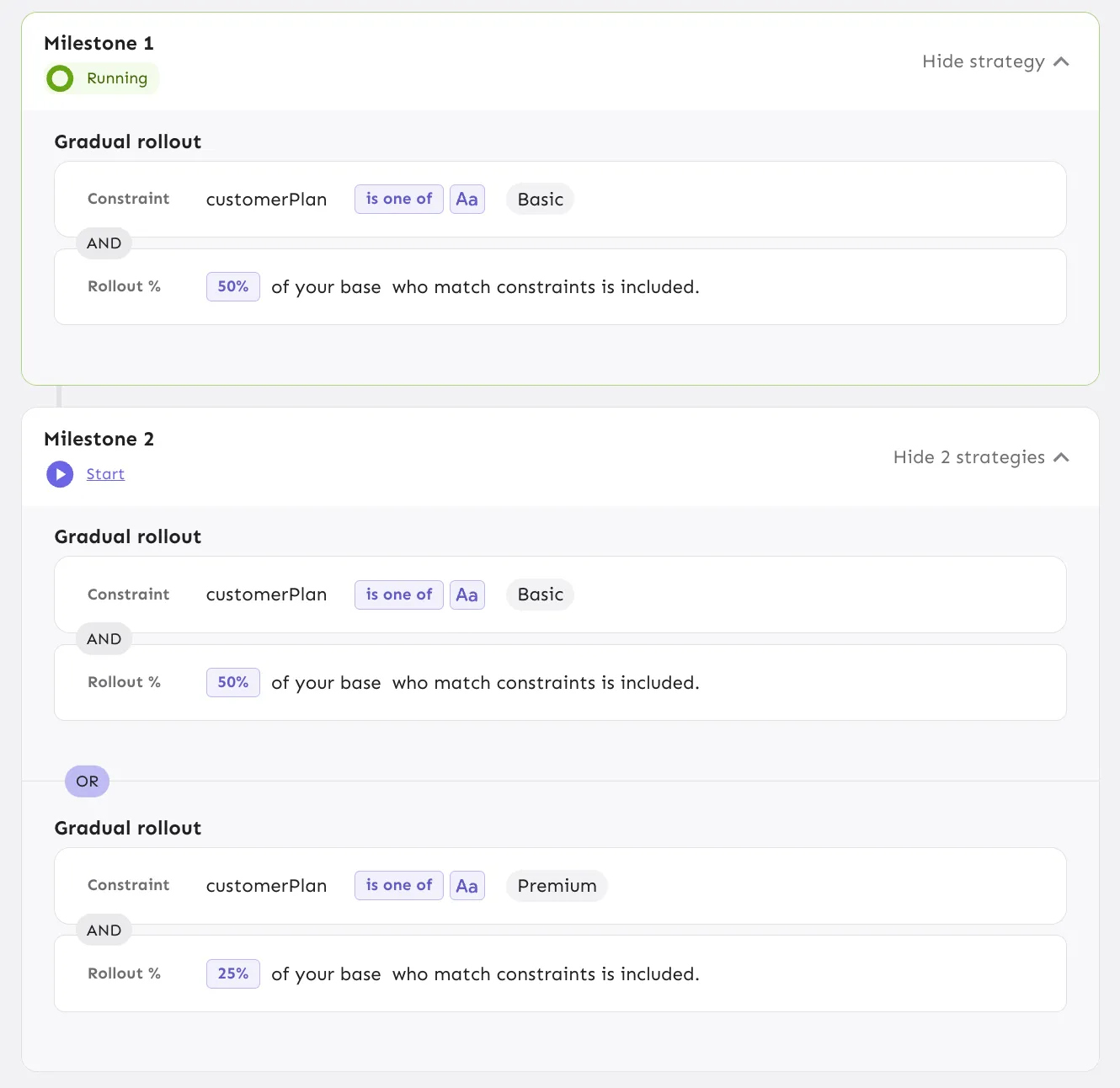
- Milestone 1: Enable the feature for 50% of users on the Basic plan.
- Milestone 2: Keep the same 50% of Basic users from Milestone 1 and add 25% of Premium users.
To achieve this, you need to:
- Create Milestone 1 with a strategy to target the 50% of Basic plan users.
- Create Milestone 2 and keep the ‘50% Basic plan’ strategy. Add a new strategy to target 25% Premium plan users.
The configuration would look something like this:
Apply a release template to a feature flag
To apply a release template to a feature flag, do the following:
- In the Admin UI, open a feature flag and select your target environment.
- Click Use template and select one of the available release templates.
- Click Add release plan.
Available templates include all global release templates and the project-level templates of the project the feature flag belongs to. Templates are labeled Global or Project to indicate their scope.
If the environment is enabled, the first milestone starts automatically.
Perform a release using a release plan
Release plans apply per feature and environment. To add a release plan, apply a release template.
Start the release
If the environment is enabled, the first milestone begins automatically upon adding the release plan. Otherwise, enable the environment to start the first milestone.
Pause the release
Pause the release at any time by disabling the environment for the feature flag.
Progress to the next milestone
To progress to the next milestone, click Start on the milestone you want to run.
Revert to a previous milestone
To return to a previous stage of the rollout, click Restart on the milestone you want to revert to.
Edit strategies
After a release template is applied to a feature flag, you can edit the activation strategies in the resulting release plan. You can update the configuration, constraints, variants, rollout percentage, or set the strategy status to Inactive, just as you would with any standalone strategy. Edits apply only to that release plan and do not change the underlying release template.