

Troubleshooting
This guide helps you troubleshoot various situations you might encounter when working with Unleash feature flags, including flags not being returned, users not being exposed as expected, unexpected A/B test results, and CORS errors.
My feature flag is not returned or my users are not exposed
If a feature flag isn’t being returned by the Frontend API or Edge, or if users are not being exposed to a flag you believe is enabled, consider the following. By default, these endpoints do not return feature flags that are not enabled to save bandwidth.
Initial checks
Verify feature configuration
- Ensure the feature flag has an activation strategy associated with it that will evaluate to
truefor your given context. - Confirm that the feature flag has been enabled in the specific environment your client application is using. (ref: enabling a feature flag)
SDK ready event
- Ensure your application, especially frontend clients, waits for the SDK to emit the
readyevent before callingisEnabled('feature-flag')orgetVariant('feature-flag'). Calling these functions too early might mean the client hasn’t yet received the latest flag configurations from the server.
Token configuration
Check token type
- To connect to the Frontend API or Edge, you must use a Front-end API token. Other token types will not work.
Check token access
- The token’s access configuration is immutable after creation and defines which feature flags it can access. The format of the token indicates its scope:
- Access to all projects (current and future): Tokens starting with
*:(e.g.,*:production.xyz123etc...) provide access to flags in the specified environment across all projects. - Access to a discrete list of projects: Tokens starting with
[]:(e.g.,[]:production.xyz123etc...) grant access to a specific subset of projects in the given environment. You can see which projects a token has access to on the API Tokens page in the Unleash admin UI. - Single project access: Tokens starting with a project name (e.g.,
my_fullstack_app:production.xyz123etc...) are restricted to that project and environment.
- Access to all projects (current and future): Tokens starting with
Context and stickiness
Gradual rollout strategy and stickiness
- When using a gradual rollout strategy, pay close attention to the stickiness configuration.
- If the context provided by your SDK during flag evaluation does not include the field specified for stickiness (e.g.,
userId,sessionId, or a custom field), the gradual rollout strategy will evaluate tofalse. Consequently, the flag (or the “on” state for that user) will not be returned by the API.
Using the Unleash playground
- Feature activation strategies can be combined in complex ways. The Unleash Playground is an invaluable tool. You can use an access token along with various context values (input via the UI) to simulate how a flag will be resolved for different users and scenarios, helping you verify your configuration.
Alternative: Using variants for disabled/enabled states
If you need to know about a flag regardless of whether it’s “on” or “off” for a user (e.g., for analytics or UI rendering logic), consider using variants:
-
First, enable the feature flag itself in the desired environment.
-
Next, configure strategy variants to represent “enabled” and “disabled” states. You can assign percentages to these variants (e.g., 50% “enabled”, 50% “disabled”).
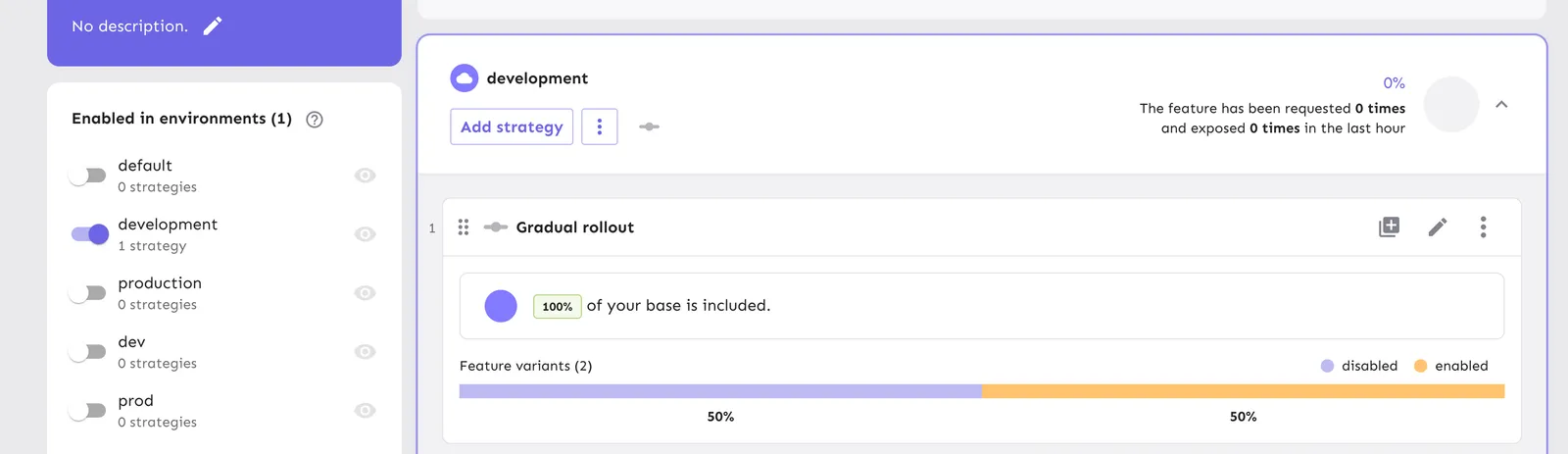
This flag itself is enabled in development and adds a 50%/50% split between disabled/enabled variants. This is essentially the same as a gradual rollout of 50% but using variants.
-
Then, in your SDK, use the
getVariant()call (or equivalent) instead ofisEnabled(). -
This approach can also be combined with more complex constraint-based targeting.
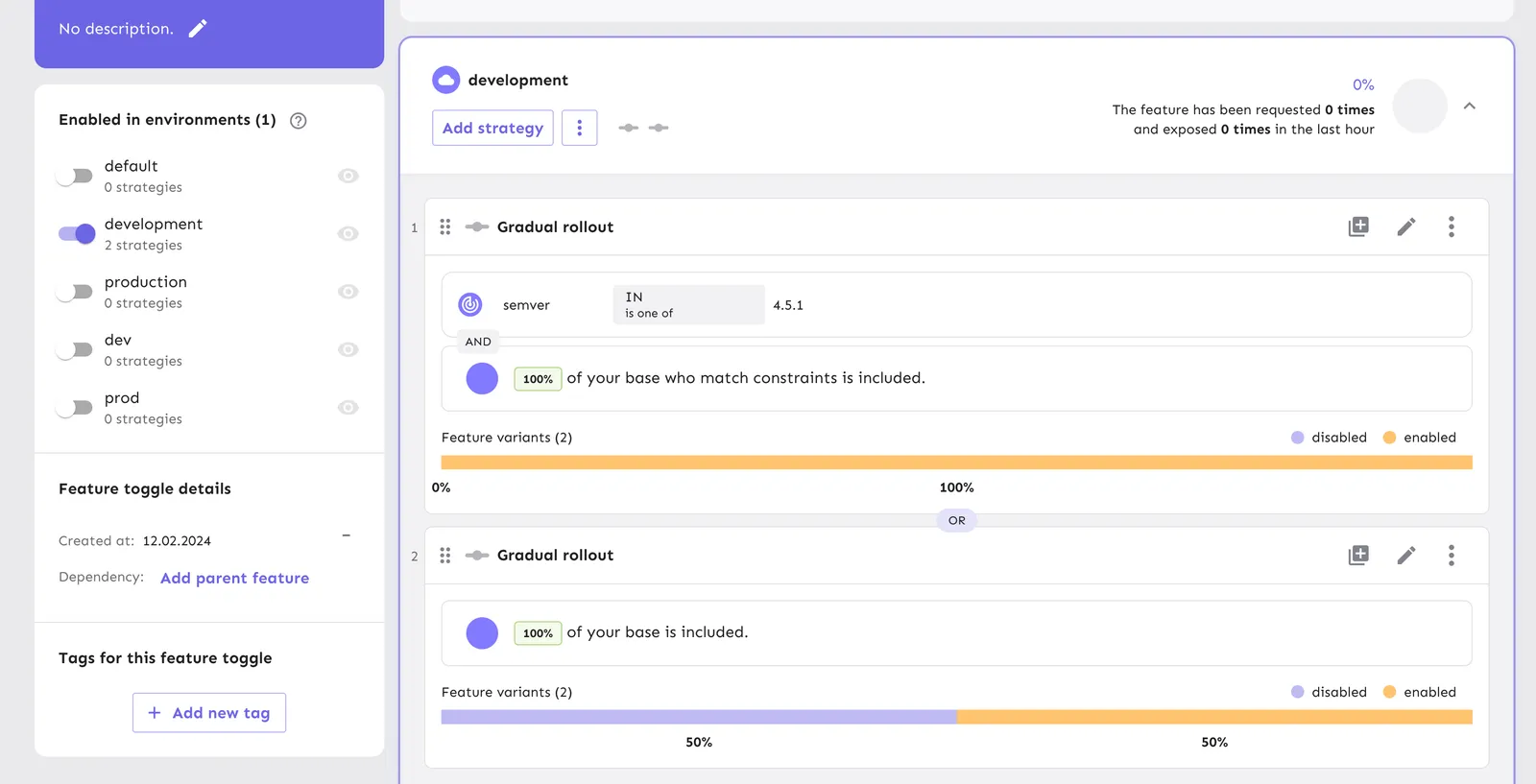
This flag returns an “enabled” variant for clients with a specific
semverand performs a percentage split for the remaining clients.
I get a 401 or 403 error from the API
A 401 Unauthorized response means the request could not be authenticated. A 403 Forbidden response usually means the token was recognized but is not allowed to do what it asked; some APIs also return 403 for invalid or wrong-type tokens. Work through the following checks to identify the cause.
Check the Authorization header
Pass the API token directly in the Authorization header, without a Bearer prefix:
A missing header, or a header your proxy strips or rewrites, results in a 401 error.
Match the token type to the API
Each API accepts one token type, and a valid token of the wrong type is rejected:
The Frontend API returns the same 403 response whether the token is malformed, deleted, expired, or of the wrong type, so the status code alone does not tell you which of these applies. Verify each in turn: the token is a frontend token, it still exists in Admin settings > Access control > API access, and its project and environment scope covers the flags you are requesting.
Check the token scope and expiry
A token only accesses the projects and environment it was created for, and this scope is immutable; see Check token access for how to read the scope from the token format. Requests with an expired token are rejected; see token expiry and rotation.
Check for change requests on write operations
If Admin API write operations return 403 in a specific environment, check whether that environment requires change requests. Environments with change requests enabled reject direct configuration changes; submit the change as a change request instead.
Check Unleash Edge token configuration
When connecting through Unleash Edge in edge mode, standard tokens are validated against the upstream Unleash instance and must be within the scopes Edge is configured to serve. If you use pre-trusted tokens, confirm that the token is explicitly configured and covered by a standard backend token for the same environment. In offline mode, confirm that the token is included in the client or frontend tokens configured at startup; these tokens do not need to exist in Unleash.
My A/B tests are producing unexpected results
If your A/B tests or experiments are producing unexpected results:
Prerequisite check
- First, ensure the feature flag is being returned correctly by following the guidance in the “My feature flag is not returned or my users are not exposed” section above.
Verify gradual rollout percentage
- Check the rollout percentage of your gradual rollout activation strategy. If you intend to include 100% of your user base in the A/B/n test, ensure the rollout percentage is set to 100%.
Check stickiness and context
- Revisit the stickiness configuration.
- If using default stickiness, confirm that either
userIdorsessionId(or both, depending on your setup) is consistently provided in the Unleash context from your application. - If the context provided during flag evaluation does not include the field used for stickiness, the gradual rollout strategy will evaluate to
false, and the user will not be part of the A/B test population for that flag.
- If using default stickiness, confirm that either
Ensure variants are correctly configured
-
Refer to the documentation on feature flag variants.
-
For a simple 50-50 A/B test, your variants should be configured accordingly (e.g., two variants, “A” and “B”, with appropriate weighting or rollout distribution if not handled by a parent strategy).
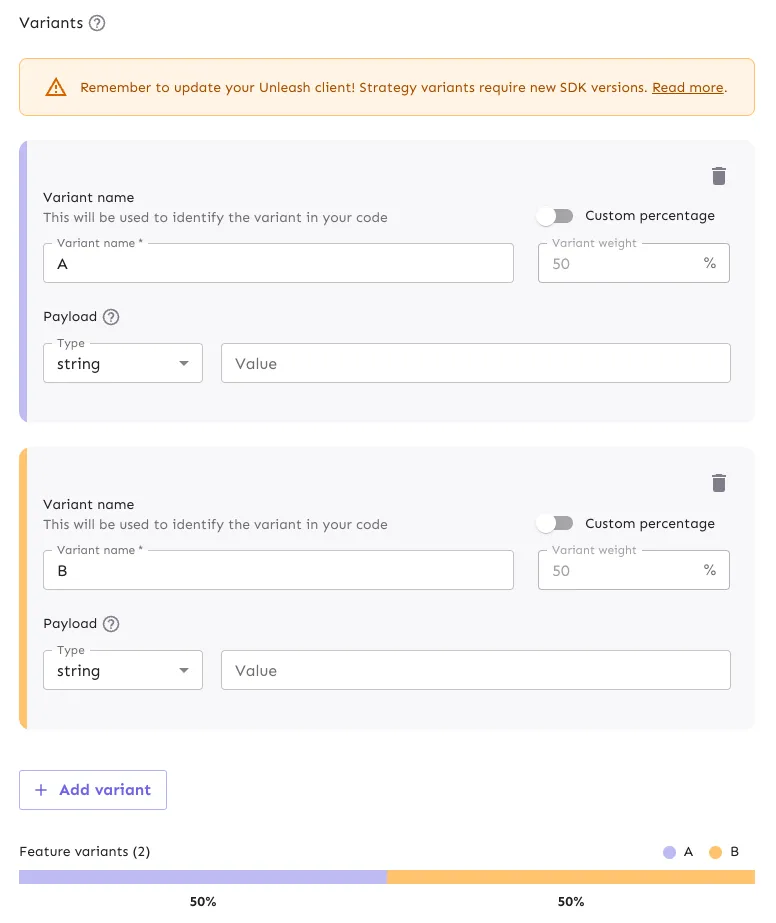
Double-check SDK code for variant handling
-
Verify that your application code correctly handles the feature flag variant response. Consult your specific SDK’s documentation.
-
For example, using the Unleash React SDK, you might follow the check variants section. Given the example variants “A” and “B”, your code might look like this:
Use the Unleash playground
- If results are still unexpected, use the Playground to simulate different user contexts and verify that the feature flag and its variants are resolving as intended.
My requests are blocked due to CORS issues
Cross-Origin Resource Sharing (CORS) issues can prevent your client-side application from communicating with the Unleash API or Edge. Browsers enforce CORS as a security measure. If you see errors like “No ‘Access-Control-Policy’ header is present on the requested resource,” it’s likely a CORS misconfiguration.
Configuring CORS in the Unleash admin UI (for Unleash server)
- Navigate to Settings in the Unleash Admin Dashboard.
- Select CORS Origins.
- Define the allowed origins (e.g.,
https://your-app.com).- For troubleshooting: You can temporarily set the allowed origin to
*(a single asterisk) to allow all origins. This helps confirm if CORS is the root cause. - Important Security Note: Using
*in production is generally discouraged. Always restrict origins to only those that require access.
- For troubleshooting: You can temporarily set the allowed origin to
- These settings can also be managed via the Unleash API.
Configuring CORS for Unleash Edge
If you are using Unleash Edge, CORS headers are typically configured via command-line flags when starting the Edge instance:
- To allow a specific origin:
- You can specify multiple domains as a comma-separated list or by using the
--cors-originflag multiple times. - Other CORS-related headers (e.g.,
Access-Control-Allow-Headers,Access-Control-Allow-Methods) can also be set via command-line arguments. Refer to the Unleash Edge deployment documentation for details.
Verifying the Access-Control-Allow-Origin header
You can use the curl command-line tool to inspect the response headers from your Unleash instance and verify the CORS configuration. Replace <host> and <endpoint> with your Unleash server URL and a relevant API endpoint (e.g., the frontend API endpoint).
Check the response for the Access-Control-Allow-Origin header. If it is missing or doesn’t match your application’s origin, revisit your CORS configuration. Also check that the Access-Control-Allow-Headers header includes authorization; without it, the browser’s preflight fails even when the origin is allowed.
I don’t see an Unleash feature in the Admin UI
If a documented Unleash feature isn’t showing up in your Admin UI, check the following:
- Is the feature included in your Unleash plan and version?
- Is the feature in beta? If so, reach out to us to get early access.
Got locked out of an Admin account after configuring SCIM
When you integrate Unleash with an identity provider (IdP) like Okta or Entra ID via SCIM, your IdP becomes the source of truth for user information. This can have an unintended side effect: users, including the one who set up the integration, might lose their admin permissions.
When your IdP syncs a user with Unleash, it sends over the user’s attributes. However, the standard SCIM protocol does not have a field for user roles. If role information isn’t specified, Unleash defaults the user to the Viewer role for security reasons. This means that even if you manually reassign the Admin role to a user in the Unleash UI, the change will be reset during the next SCIM sync.
Recommended approaches
Manage roles with user groups
By creating a group in Unleash and assigning it an admin role, and then configuring your IdP to push that group and its membership via SCIM, you get fully automated permission management:
- In the Unleash Admin UI, go to Admin settings > User config > Groups and create a new group, for example
Unleash Admins. - Assign the Admin role or your desired custom-root role to this group.
- In your IdP, ensure you have a corresponding group and configure your SCIM integration.
- Once configured, any user you add to the
Unleash Adminsgroup in your IdP will automatically gain admin privileges in Unleash.
Create a recovery admin account
You can create a dedicated admin account that is not managed by SCIM. This account can be used for initial setup or as an emergency backup if you get locked out:
- In Unleash, create a new user with email address outside of your IdP.
- Assign an admin role.
This ensures that the user’s permissions are managed solely within Unleash and will not be affected by SCIM syncs.
What if I’m already locked out?
If you’ve already enabled SCIM and lost all admin access, and you are self-hosted, you can enable login with user and password by setting the environment variable UNLEASH_ALLOW_PASSWORD_LOGIN=true. If you are on a hosted plan, please contact our support team. We can create a temporary admin user for you while you correct your SCIM configuration.
My Network Tab is empty, and I don’t see any data.
If you run into an issue when configuring your Network dashboards, verify that you’ve set up the PROMETHEUS_API URL correctly:
-
Check the
PROMETHEUS_APIenvironment variable: Ensure it points to your Prometheus server and not to your Unleash URL. Pointing it back to Unleash (e.g., https://unleash.example.com/internal-backstage/prometheus) is incorrect and will result in an empty dashboard. -
Check network connectivity: Confirm that your Unleash instance can reach the Prometheus server URL you provided. You can test this by running a curl command from within the Unleash container or a pod on the same network.