

For AI agents: a documentation index is available at the root level at /llms.txt and /llms-full.txt. Append /llms.txt to any URL for a page-level index, or .md for the markdown version of any page.
13.5kProductPricingSign inStart free trialBook a demo
DocsAPIsSDKsEnterprise EdgeGuidesAcademyRelease notes
    • Home
  • Get started
    • Quickstart
    • Introduction to feature flags
    • Unleash architecture overview
  • Core concepts
    • Overview
    • Import and export
      • Unleash hosting options
        • OpenID Connect
        • SAML 2.0
        • SAML Keycloak
        • Azure SAML
        • Keycloak group syncing
        • Group SSO sync
      • Developer Toolbar

Unleash reduces the risk of releasing new features, drives innovation by streamlining the software release process, and increases revenue by optimizing end-user experience. While we serve the needs of the world's largest, most security-conscious organizations, we are also rated the “Easiest Feature Management system to use” by G2.

GitHubGitHubLinkedInLinkedInX (Twitter)X (Twitter)SlackSlackStack OverflowStack OverflowYouTubeYouTube

Server SDKs

  • Node.js
  • Java
  • Go
  • Rust
  • Ruby
  • Python
  • .NET
  • PHP
  • All SDKs

Frontend SDKs

  • JavaScript
  • React
  • Next.js
  • Vue
  • iOS
  • Android
  • Flutter

Feature Flag use cases

  • Secure, scalable feature flags
  • Rollbacks
  • FedRAMP, SOC2, ISO2700 compliance
  • Progressive or gradual rollouts
  • Trunk-based development
  • Software kill switches
  • A/B testing
  • Feature management
  • Canary releases

Product

  • Quickstart
  • Unleash architecture
  • Pricing
  • Product vision
  • Open live demo
  • Open source
  • Enterprise feature management platform
  • Unleash vs LaunchDarkly

Support

  • Help center
  • Status
  • Changelog
Made in a cosy atmosphere in the Nordic countries.Copyright © 2026 Unleash
LogoLogo
13.5kProductPricingSign inStart free trialBook a demo
On this page
  • Introduction
  • Basic configuration
  • Step 1: Sign-in to Unleash
  • Step 2: Navigate to SSO configuration
  • Step 3: Keycloak with SAML 2.0
  • Step 4: Configure SAML 2.0 Authentication provider in Unleash
  • Step 5: Validate
Integrate and deploySingle sign-on

Set up SSO with SAML 2.0 and Keycloak

||View as Markdown|
Was this page helpful?

Last updated May 11, 2026

Previous

Set up SSO with SAML 2.0 and Microsoft Entra ID

Next
Built with
Enterprise

Introduction

In this guide we will do a deep dive on the Single-Sign-On (SSO) integration with SAML 2.0 and connect it with Keycloak as IdP. Unleash supports other identity providers and protocols, have a look at all available Single-Sign-On options

Basic configuration

Step 1: Sign-in to Unleash

In order to configure SSO you will need to log in to the Unleash instance with a user that have “Admin” role. If you are self-hosting Unleash then a default user will be automatically created the first time you start Unleash:

  • username: admin
  • password: unleash4all

Step 2: Navigate to SSO configuration

In order to configure SSO with SAML with your Unleash enterprise you should navigate to the Single-Sign-On configuration section and choose the “SAML 2.0” tab.
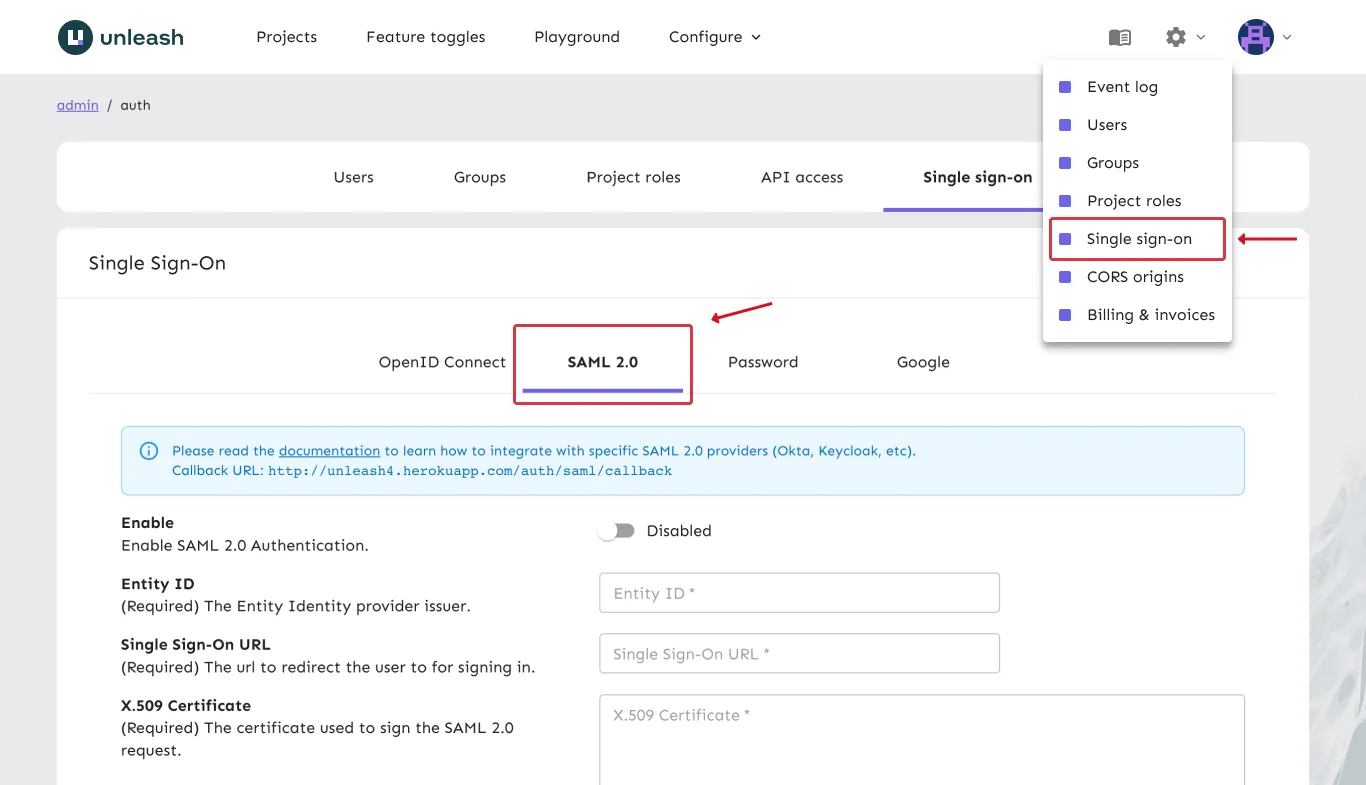
sso-config

Step 3: Keycloak with SAML 2.0

Open to the Keycloak dashboard and navigate to “Clients” and click “Add Client” button. Give it a unique clientId (e.g. unleash), use the “saml” protocol and specify the following SAML Endpoint:
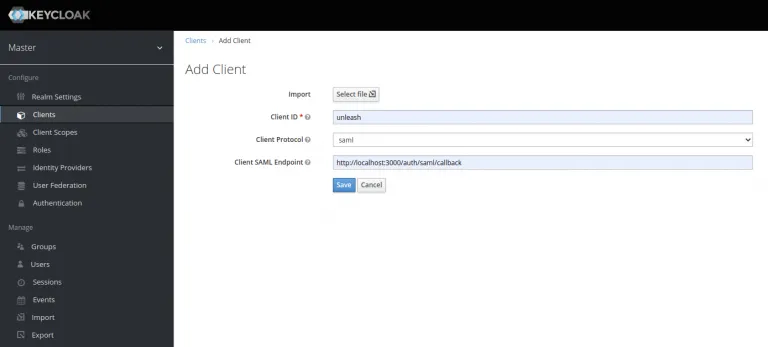
https://<unleash.hostname.com>/auth/saml/callback

Keycloak: Add client

a) Change “Name ID format to “email” Unleash expects an email to be sent from the SSO provider so make sure Name ID format is set to email, see a). also you must give the IDP Initiated SSO URL Name, we have chosen to call it “unleash”, see 2). This gives us the Sign-on URL we will need in our Unleash configuration later.
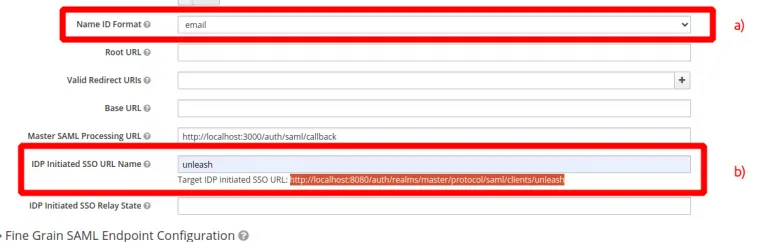
Keycloak: step 2

b) Copy the Keycloak Entity ID an Signing key

Navigate to “Realm Settings” and open the “SAML 2.0 Identity Provider Metadata”. You will need copy the entityID (a) and the X509Certificate (B). These will be required when configuring SAML 2.0 in Unleash.
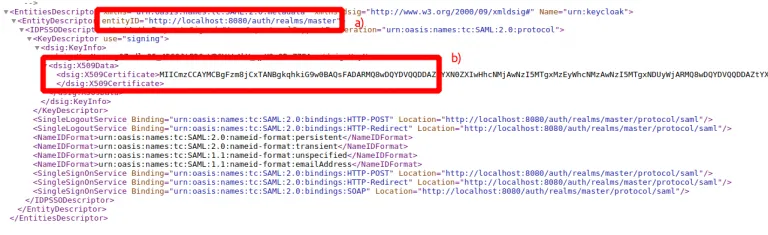
Keycloak: step 3

Step 4: Configure SAML 2.0 Authentication provider in Unleash

Go back to Unleash Admin Dashboard and navigate to Admin Menu -> Single-Sign-On -> SAML. Fill in the values captured in the step 3.

  • Entity ID (3b a)
  • Single Sign-On URL (3a b)
  • Certificate (3b b)

You may also choose to “auto create users”. This will make Unleash automatically create new users on the fly first time they sign-in to Unleash with the given SSO provider. You may also limit the auto-creation to certain email domains, shown in the example below.
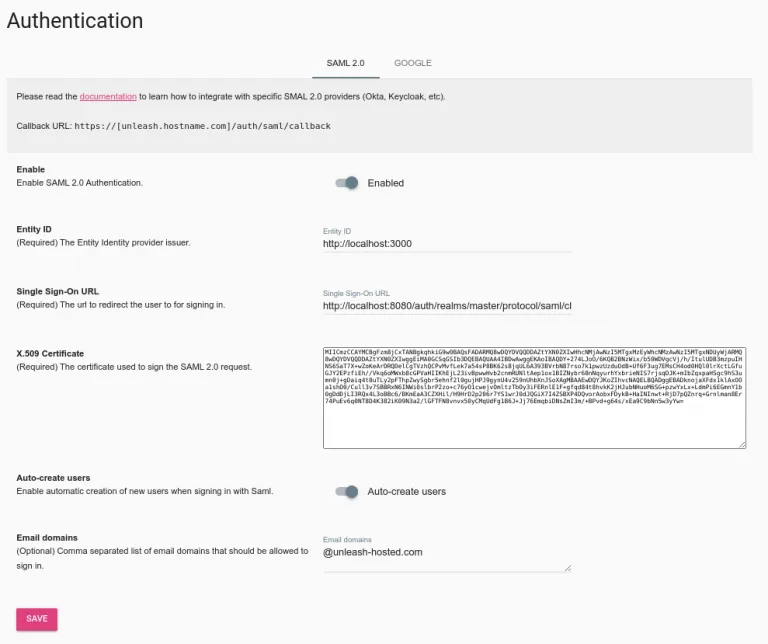
Keycloak: step 4

Step 5: Validate

You have now successfully configured Unleash to use SAML 2.0 together with Keycloak as an IdP. Please note that you also must assign users to the application defined in Keycloak to actually be able to log-in to Unleash.

Try signing out of Unleash. If everything is configured correctly you should be presented with the option to sign in with SAML 2.0.