

For AI agents: a documentation index is available at the root level at /llms.txt and /llms-full.txt. Append /llms.txt to any URL for a page-level index, or .md for the markdown version of any page.
13.5kProductPricingSign inStart free trialBook a demo
DocsAPIsSDKsEnterprise EdgeGuidesAcademyRelease notes
    • Home
  • Get started
    • Quickstart
    • Introduction to feature flags
    • Unleash architecture overview
  • Core concepts
    • Overview
    • Import and export
      • Unleash hosting options
        • OpenID Connect
        • SAML 2.0
        • SAML Keycloak
        • Azure SAML
        • Keycloak group syncing
        • Group SSO sync
      • Developer Toolbar

Unleash reduces the risk of releasing new features, drives innovation by streamlining the software release process, and increases revenue by optimizing end-user experience. While we serve the needs of the world's largest, most security-conscious organizations, we are also rated the “Easiest Feature Management system to use” by G2.

GitHubGitHubLinkedInLinkedInX (Twitter)X (Twitter)SlackSlackStack OverflowStack OverflowYouTubeYouTube

Server SDKs

  • Node.js
  • Java
  • Go
  • Rust
  • Ruby
  • Python
  • .NET
  • PHP
  • All SDKs

Frontend SDKs

  • JavaScript
  • React
  • Next.js
  • Vue
  • iOS
  • Android
  • Flutter

Feature Flag use cases

  • Secure, scalable feature flags
  • Rollbacks
  • FedRAMP, SOC2, ISO2700 compliance
  • Progressive or gradual rollouts
  • Trunk-based development
  • Software kill switches
  • A/B testing
  • Feature management
  • Canary releases

Product

  • Quickstart
  • Unleash architecture
  • Pricing
  • Product vision
  • Open live demo
  • Open source
  • Enterprise feature management platform
  • Unleash vs LaunchDarkly

Support

  • Help center
  • Status
  • Changelog
Made in a cosy atmosphere in the Nordic countries.Copyright © 2026 Unleash
LogoLogo
13.5kProductPricingSign inStart free trialBook a demo
On this page
  • Step 1: Navigate to SSO configuration
  • Step 2: Enable Group Syncing
  • Step 3: Navigate to a group
  • Step 4: Edit the group configuration
  • Step 5: Link SSO groups to your group
Integrate and deploySingle sign-on

Set up user group SSO syncing

||View as Markdown|
Was this page helpful?

Last updated May 11, 2026

Previous

Set up Okta provisioning

Next
Built with
v4.18 Enterprise

This guide takes you through how to configure your user groups to automatically populate users through Single Sign On (SSO). Refer to setting up Keycloak for user group sync for an end to end example. Note that the steps below require you to be logged in as an admin user.

Step 1: Navigate to SSO configuration

Navigate to the “Single sign-on” configuration page.
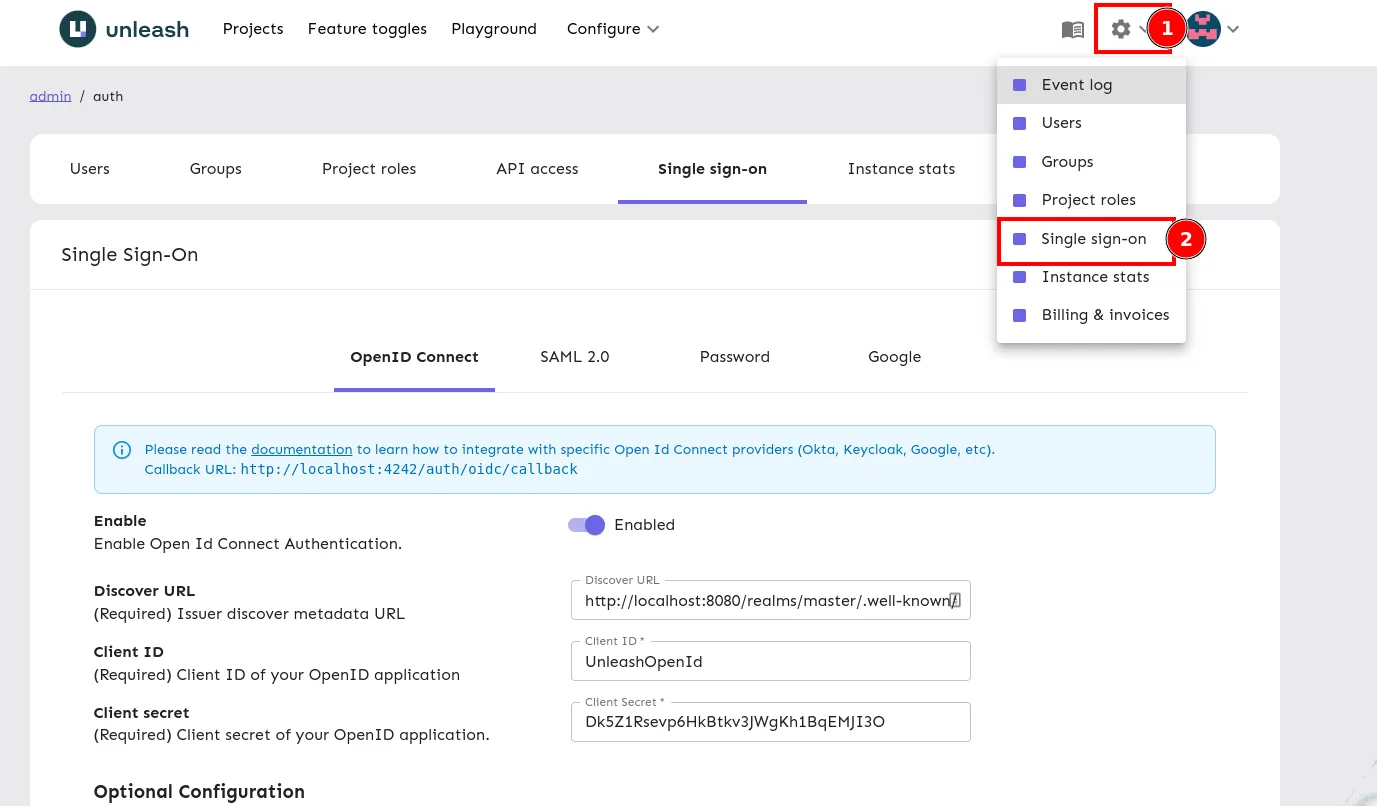
The Unleash Admin UI with the steps highlighted to navigate to the Single sign-on configuration.

Step 2: Enable Group Syncing

Turn on “Enable Group Syncing” and enter a value for “Group Field JSON Path”. Refer to the User group SSO integration documentation for more information or to the how-to guide for integrating with Keycloak for a practical example.

The value is the JSON path in the token response where your group properties are located, this is up to your SSO provider, a full example for Keycloak can be found here. Once you’re happy, save your configuration.
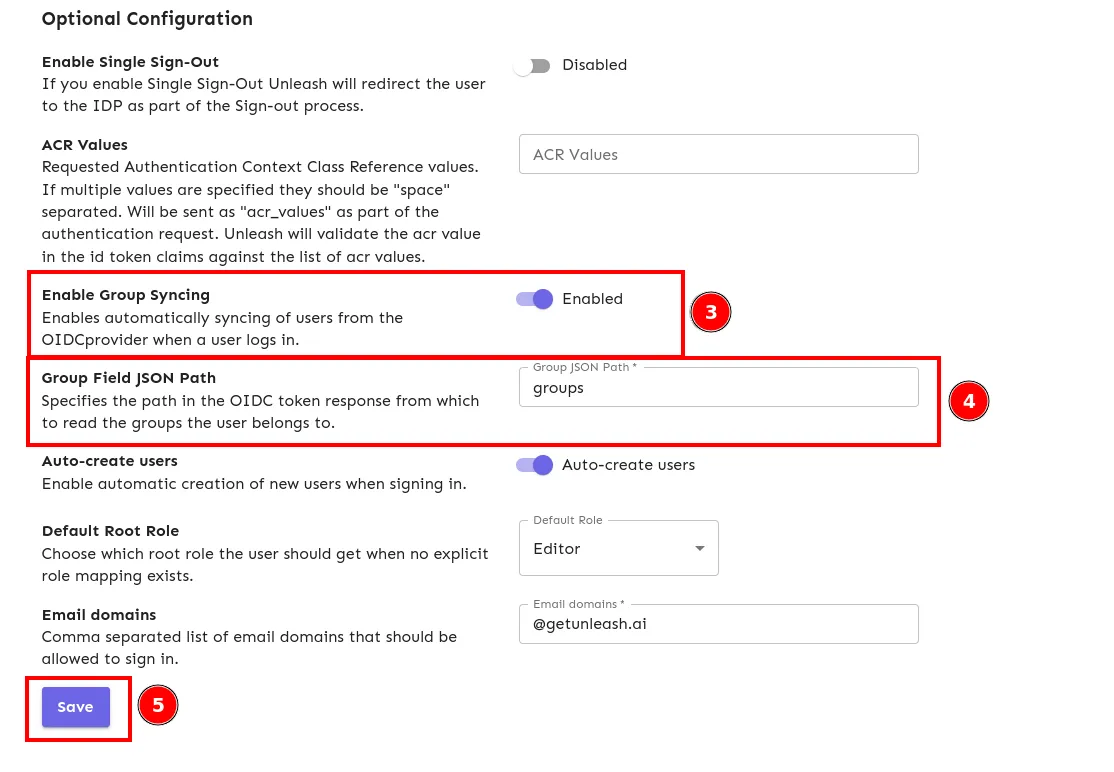
The Single sign-on configuration page with enable group syncing, group field JSON path and save inputs highlighted.

Step 3: Navigate to a group

Navigate to the group you want to sync users for.
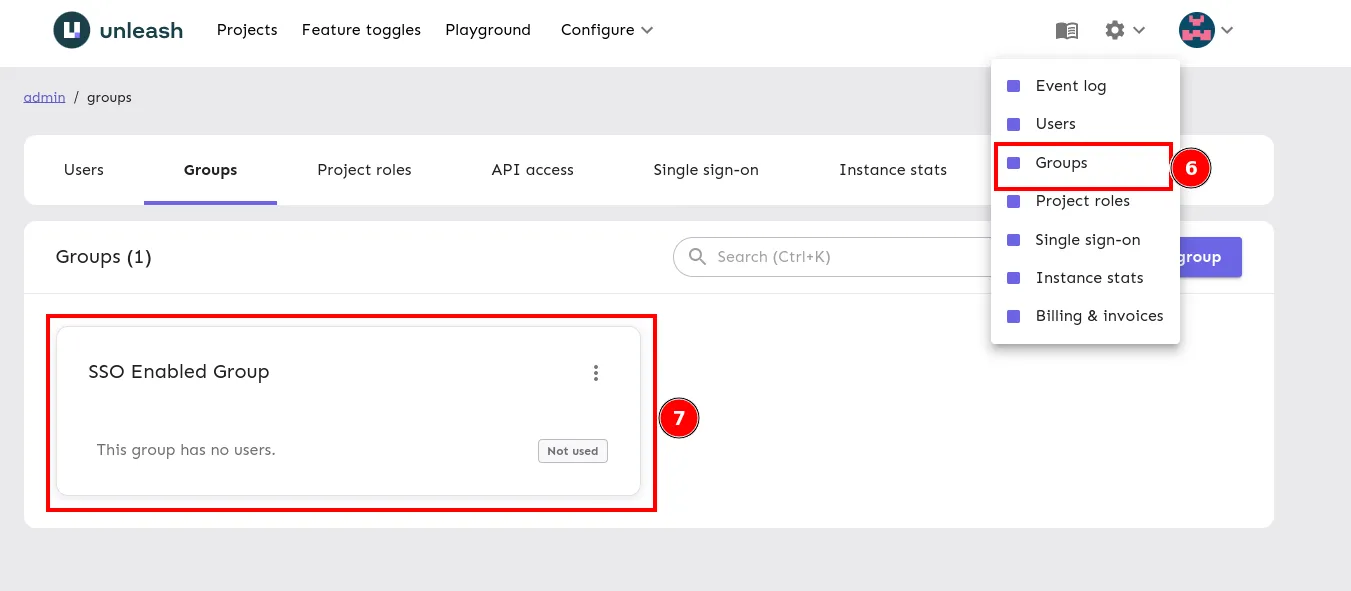
The Unleash Admin UI with the steps highlighted to navigate to groups and a highlighted group card.

Step 4: Edit the group configuration

Navigate to edit group.
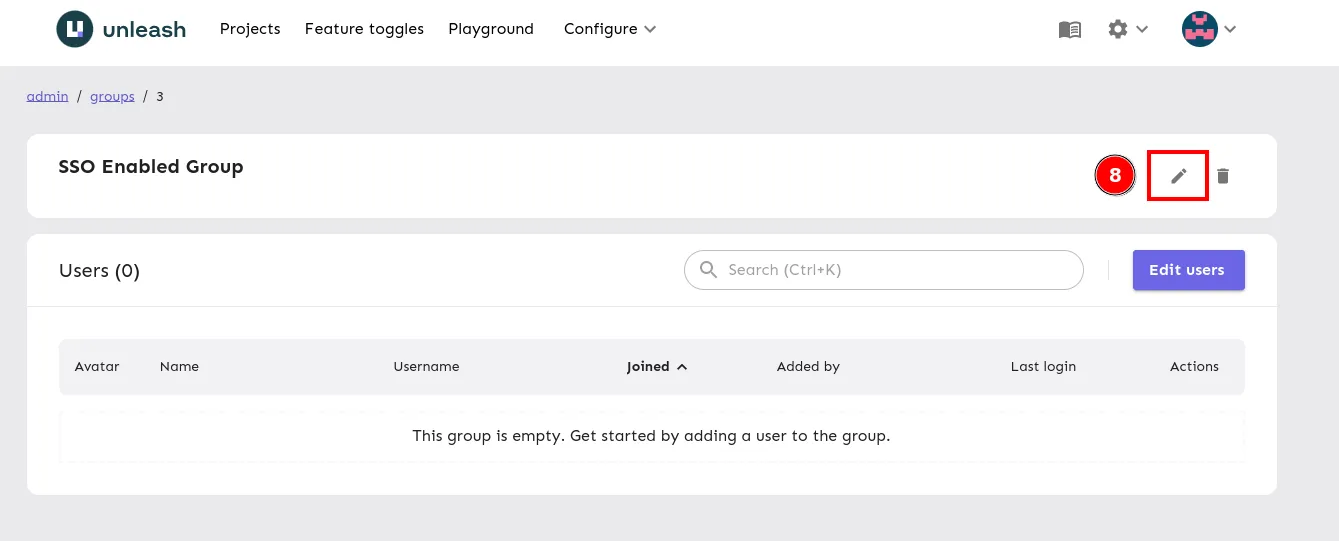
The group configuration screen with edit group highlighted.

Step 5: Link SSO groups to your group

Link as many SSO groups as you like to your group, these names should match the group name or ID sent by your SSO provider exactly. Save your group configuration, the next time a user belonging to one of these groups logs in, they’ll be automatically added to this group.
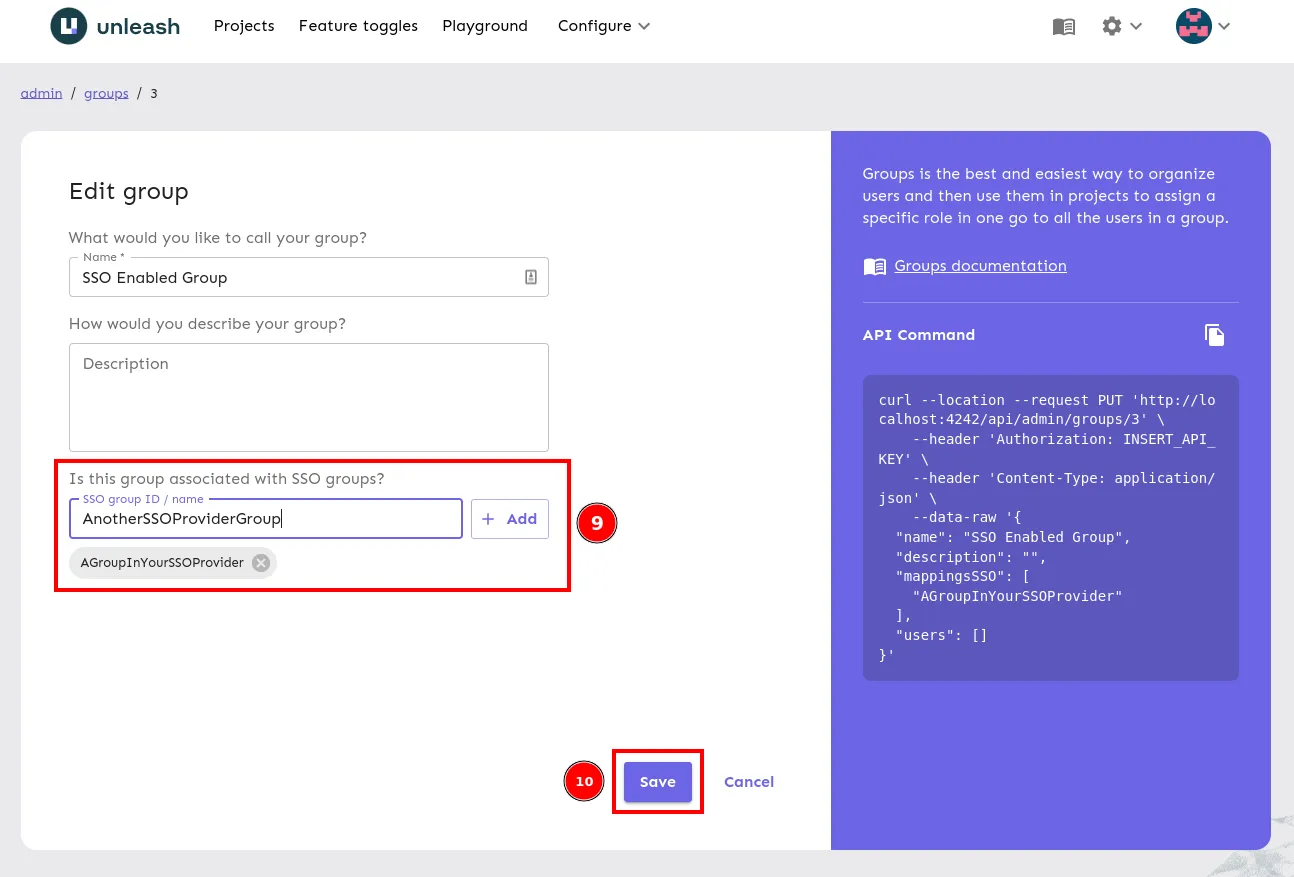
The edit group screen with SSO Group input and save highlighted.