App for Slack
The App for Slack integration posts messages to a specified set of channels in your Slack workspace. The channels can be public or private, and can be specified on a per-flag basis by using Slack tags.
Installation
To install the App for Slack integration, follow these steps:
- Navigate to the integrations page in the Unleash admin UI (available at the URL
/integrations) and select “configure” on the App for Slack integration. - On the integration configuration form, use the “install & connect” button.
- A new tab will open, asking you to select the Slack workspace where you’d like to install the app.
- After successful installation of the Unleash App for Slack in your chosen Slack workspace, you’ll be automatically redirected to a page displaying a newly generated access token.
- Copy this access token and paste it into the
Access tokenfield within the integration settings.
By default, the Unleash App for Slack is granted access to public channels. If you want the app to post messages to private channels, you’ll need to manually invite it to each of those channels.
Configuration
The configuration settings allow you to choose the events you’re interested in and whether you want to filter them by projects and environments. You can configure a comma-separated list of channels to post the configured events to. These channels are always notified, regardless of the event type or the presence of Slack tags.
Events
You can choose to trigger updates for the following events:
- addon-config-created
- addon-config-deleted
- addon-config-updated
- api-token-created
- api-token-deleted
- change-added
- change-discarded
- change-edited
- change-request-applied
- change-request-approval-added
- change-request-approved
- change-request-cancelled
- change-request-created
- change-request-discarded
- change-request-rejected
- change-request-sent-to-review
- context-field-created
- context-field-deleted
- context-field-updated
- feature-archived
- feature-created
- feature-deleted
- feature-environment-disabled
- feature-environment-enabled
- feature-environment-variants-updated
- feature-metadata-updated
- feature-potentially-stale-on
- feature-project-change
- feature-revived
- feature-stale-off
- feature-stale-on
- feature-strategy-add
- feature-strategy-remove
- feature-strategy-update
- feature-tagged
- feature-untagged
- group-created
- group-deleted
- group-updated
- project-created
- project-archived
- project-deleted
- segment-created
- segment-deleted
- segment-updated
- service-account-created
- service-account-deleted
- service-account-updated
- user-created
- user-deleted
- user-updated
Parameters
The Unleash App for Slack integration takes the following parameters.
- Access token - This is the only required property. After successful installation of the Unleash App for Slack in your chosen Slack workspace, you’ll be automatically redirected to a page displaying a newly generated access token. You should copy this access token and paste it into this field.
- Channels - A comma-separated list of channels to post the configured events to. These channels are always notified, regardless of the event type or the presence of a Slack tag.
Tags
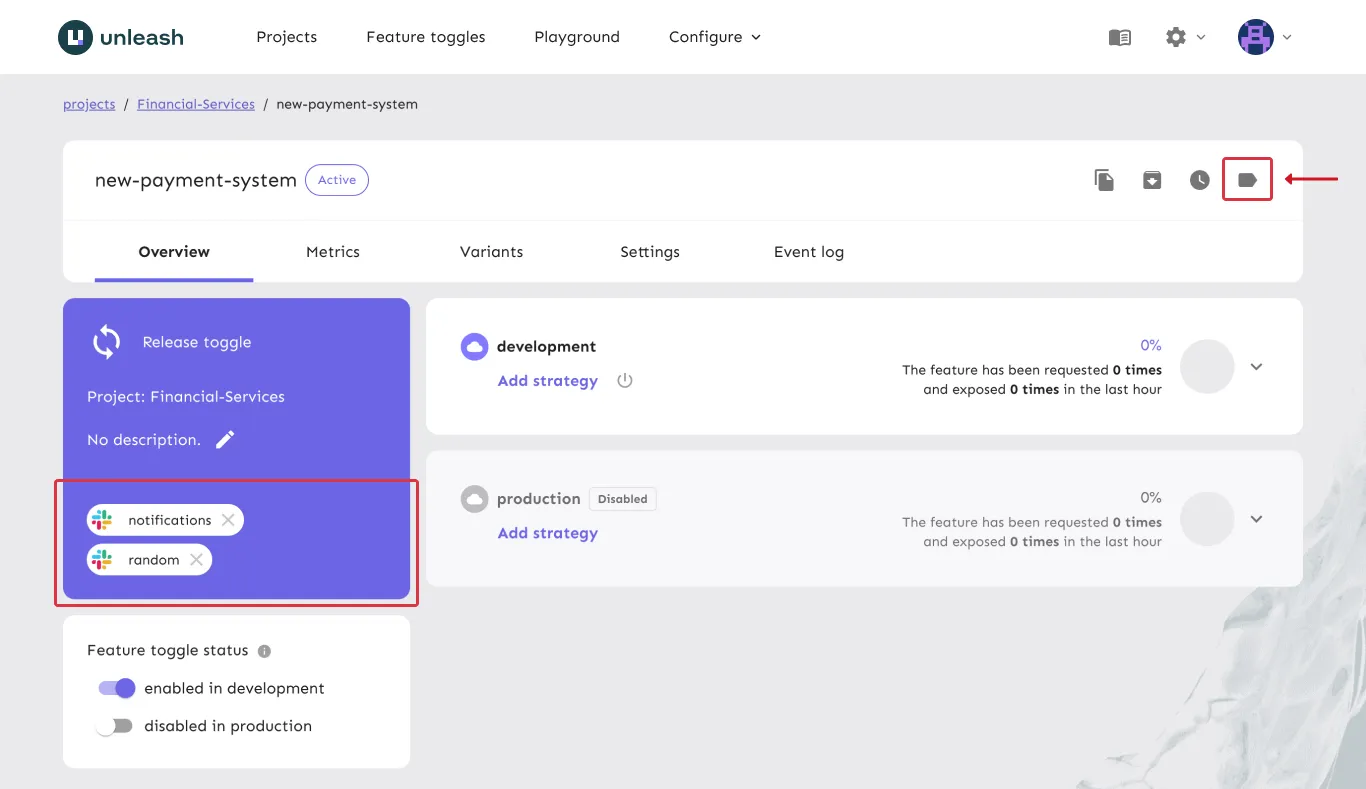
Besides the configured channels, you can choose to notify other channels by tagging your feature flags with Slack-specific tags. For instance, if you want the Unleash App for Slack to send notifications to the #general channel, add a Slack-type tag with the value “general” (or “#general”; both will work) to your flag. This will ensure that any configured events related to that feature flag will notify the tagged channel in addition to any channels configured on the integration-level.
To exclusively use tags for determining notification channels, you can leave the “channels” field blank in the integration configuration. Since you can have multiple configurations for the integration, you’re free to mix and match settings to meet your precise needs. Before posting a message, all channels for that event, both configured and tagged, are combined and duplicates are removed.