

Import and export
You can import and export feature flag configurations between environments within an instance or between different Unleash instances. This lets you migrate between self-hosted and cloud-hosted instances, move from open source version to Unleash Enterprise, or use import/export as part of a backup and restore strategy.
On the project-level, you can import and export:
On the environment-level, you can import and export:
- Activation strategies including constraints and references to segments
- Strategy variants
- Feature flag status (enabled/disabled)
For additional global configuration, you can import and export:
Not included in the export:
- Segments and custom strategies: Only references are included in the export. If an import file contains references that don’t exist in the target, the import process will stop. You must create the segments or custom strategies manually in the target instance before running the import again.
- Release plans: You must manually recreate any release plans for imported feature flags.
Export feature flags
Export all flags from a project
- Go to Projects and open the project you want to export from.
- Click Export all project flags.
- Select the environment to export flag configurations from.
- Click Export selection.
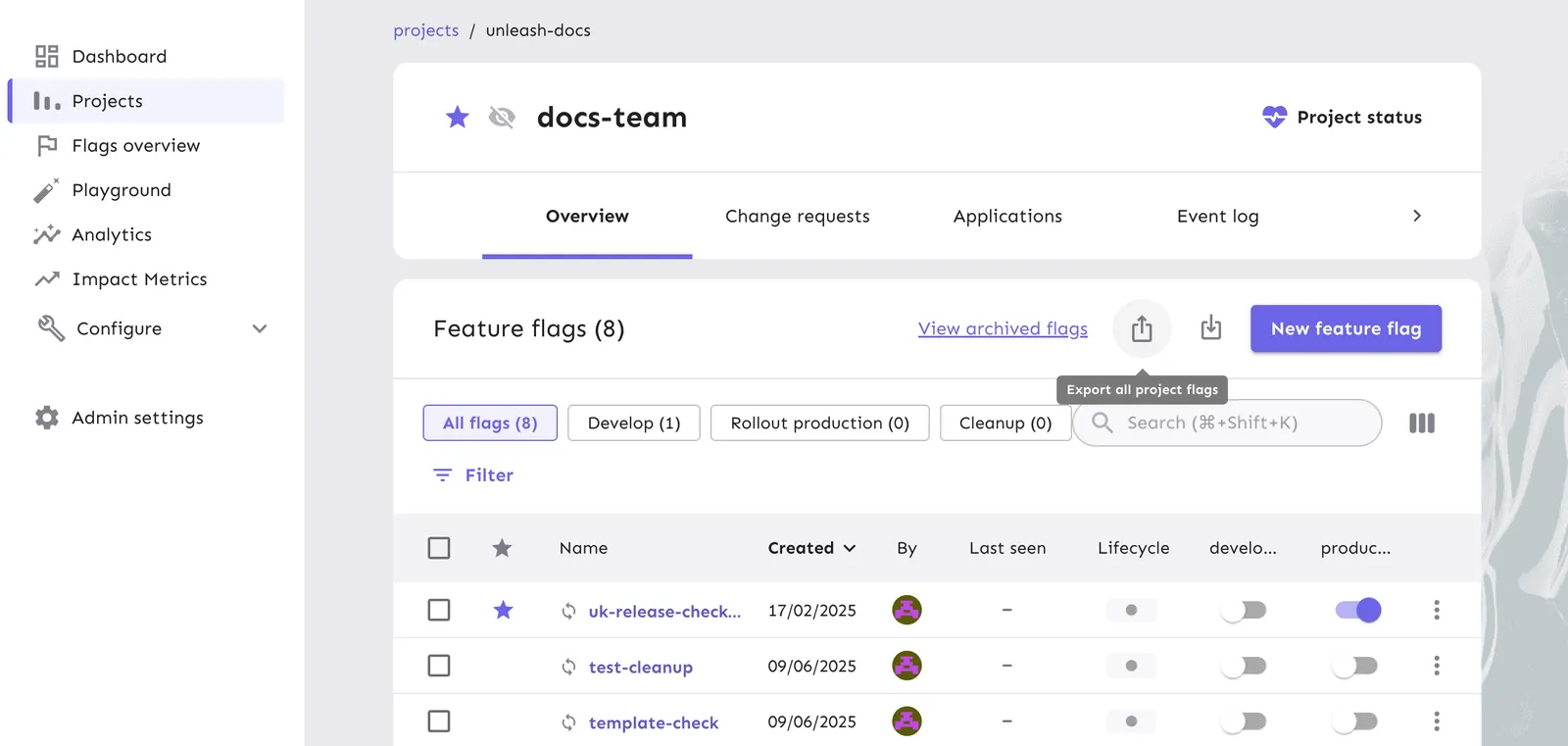
As a result, you’ll have a JSON export that includes the selected flags in the chosen environment.
Export a selection of flags from a project
- Go to Projects and open the project you want to export from.
- [Optional] Use search or filtering to narrow the list.
- Select one or more flags. You can use the header checkbox to select all rows in the current view (up to 100).
- Click Export.
- Select the environment to export flag configurations from.
- Click Export selection.
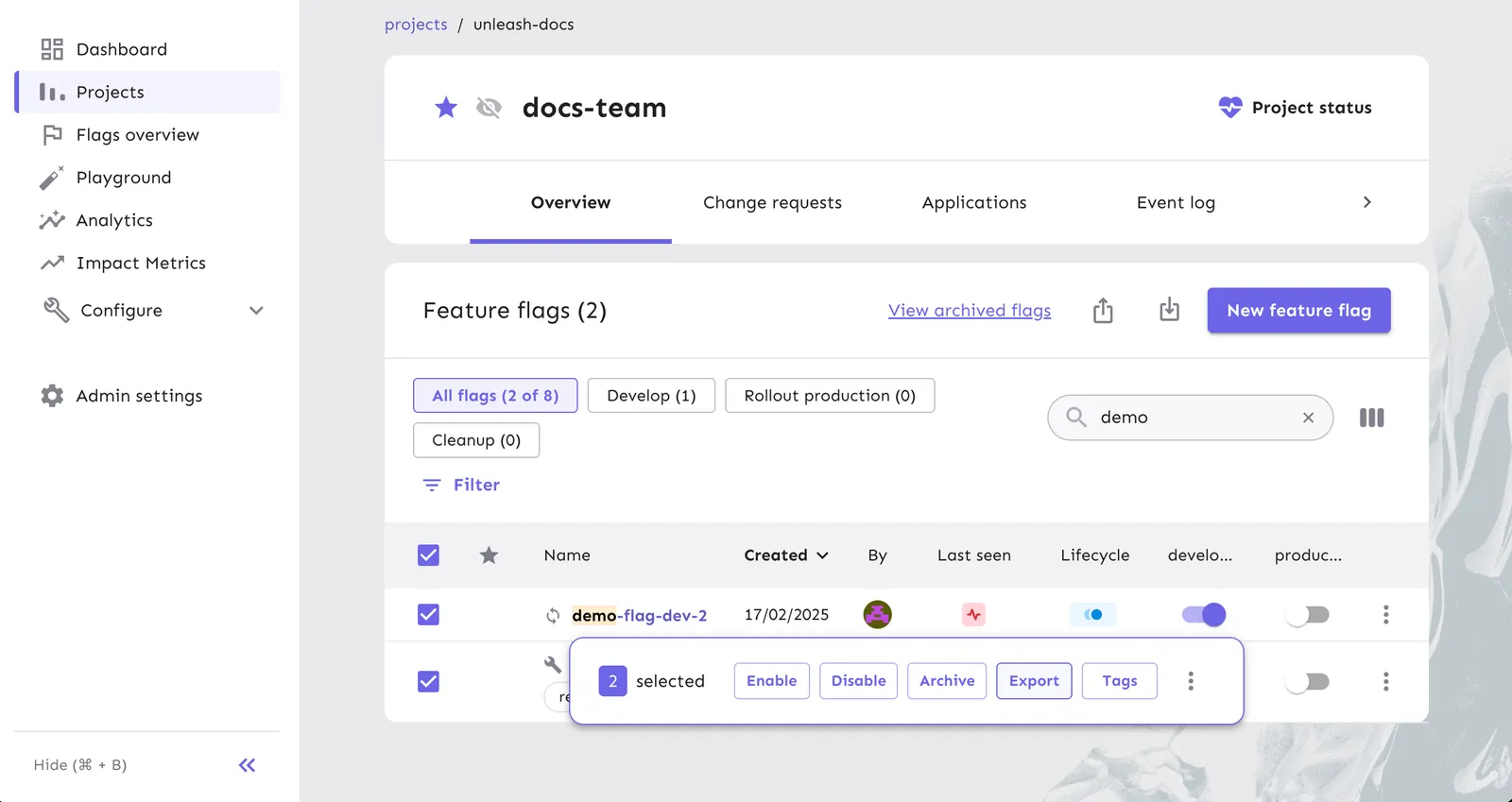
As a result, you’ll have a JSON export that includes the selected flags in the chosen environment.
Export flags from the flags overview
- Go to Flags overview.
- [Optional] Use search or filtering to narrow the list.
- Click Export flags.
- Select the environment to export flag configurations from.
- Click Export selection.
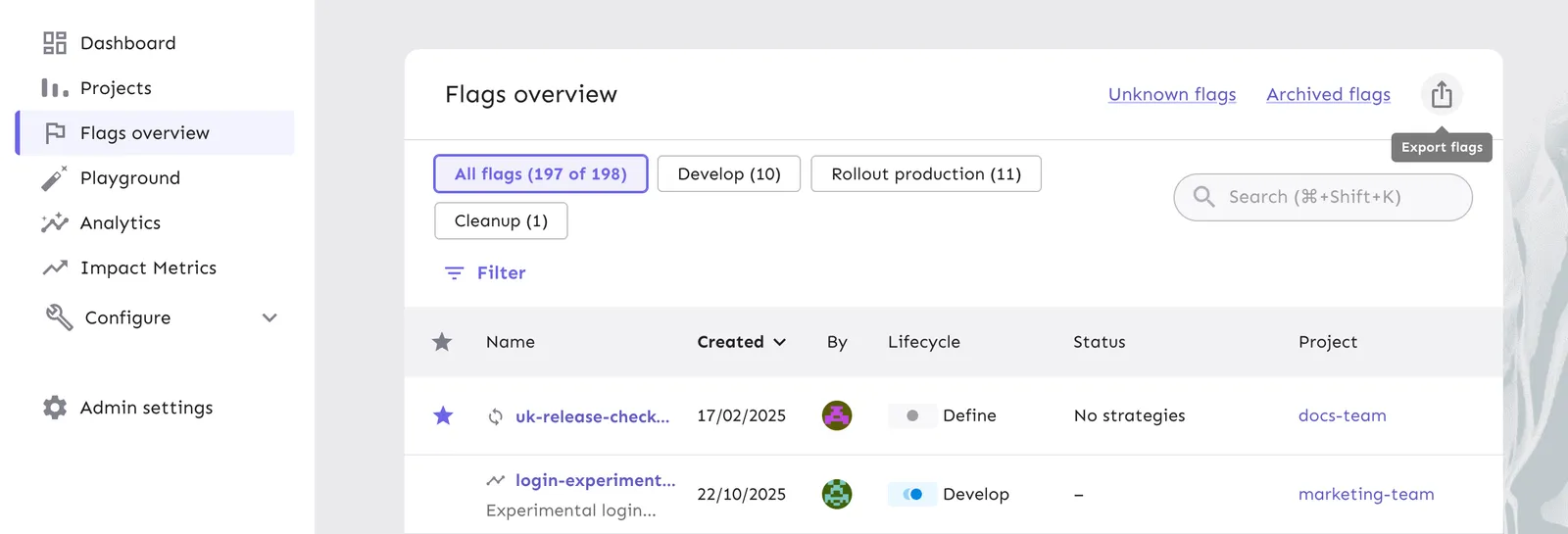
As a result, you’ll have a JSON export that includes the selected flags in the chosen environment.
Import feature flags
Import requirements
Before you begin an import, ensure that you have met the following requirements:
- The import file size limit is 500 kB. Larger files fail with
413 Payload Too Large. Export in batches to stay under the limit. - The project and environment you are importing into must not have any pending change requests.
- Your import file must pass all validation rules.
Import stages
The import process runs in three stages: import file, validate configuration, and finish import.
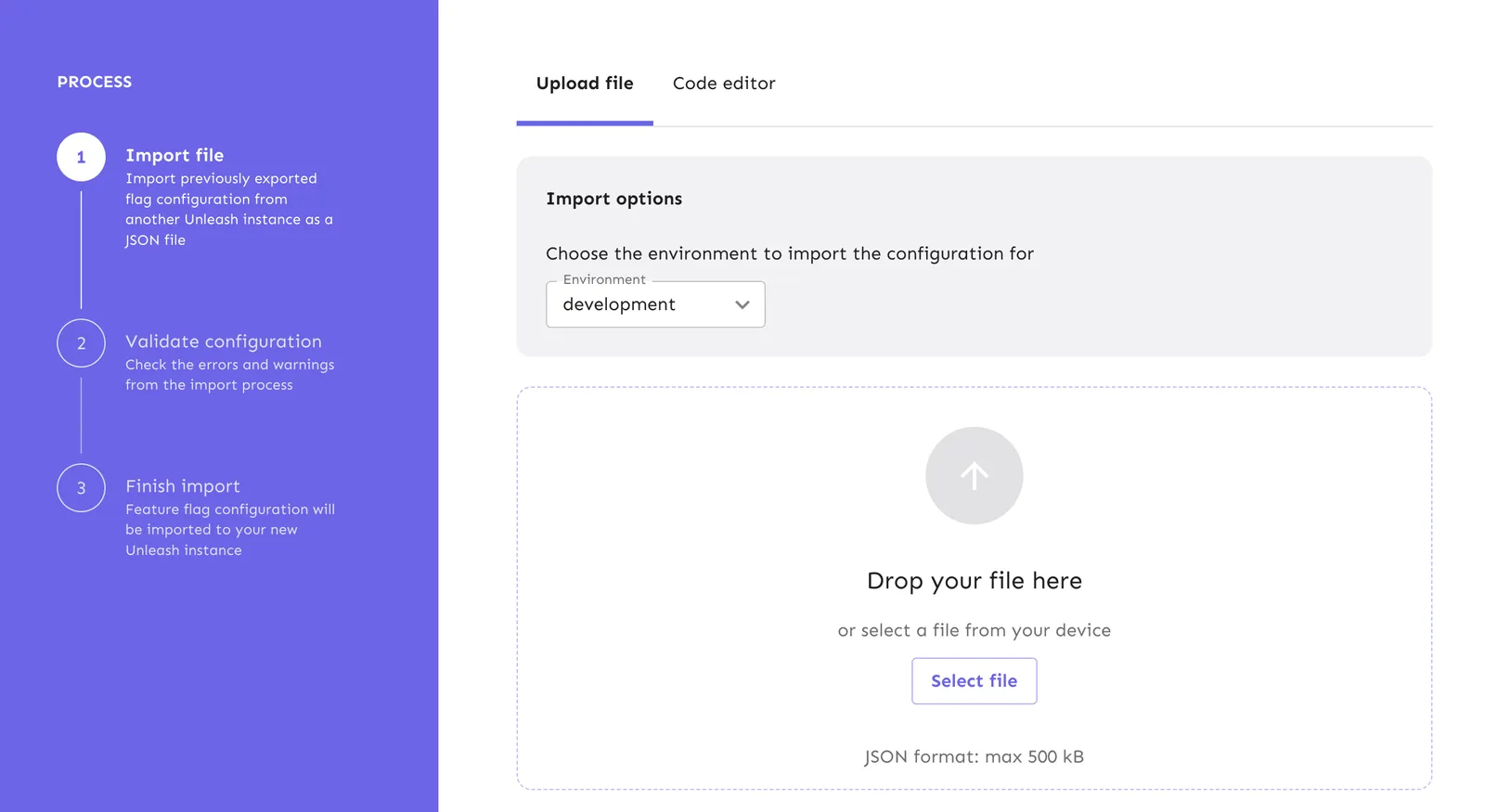
Import file
- Go to Projects and open the target project.
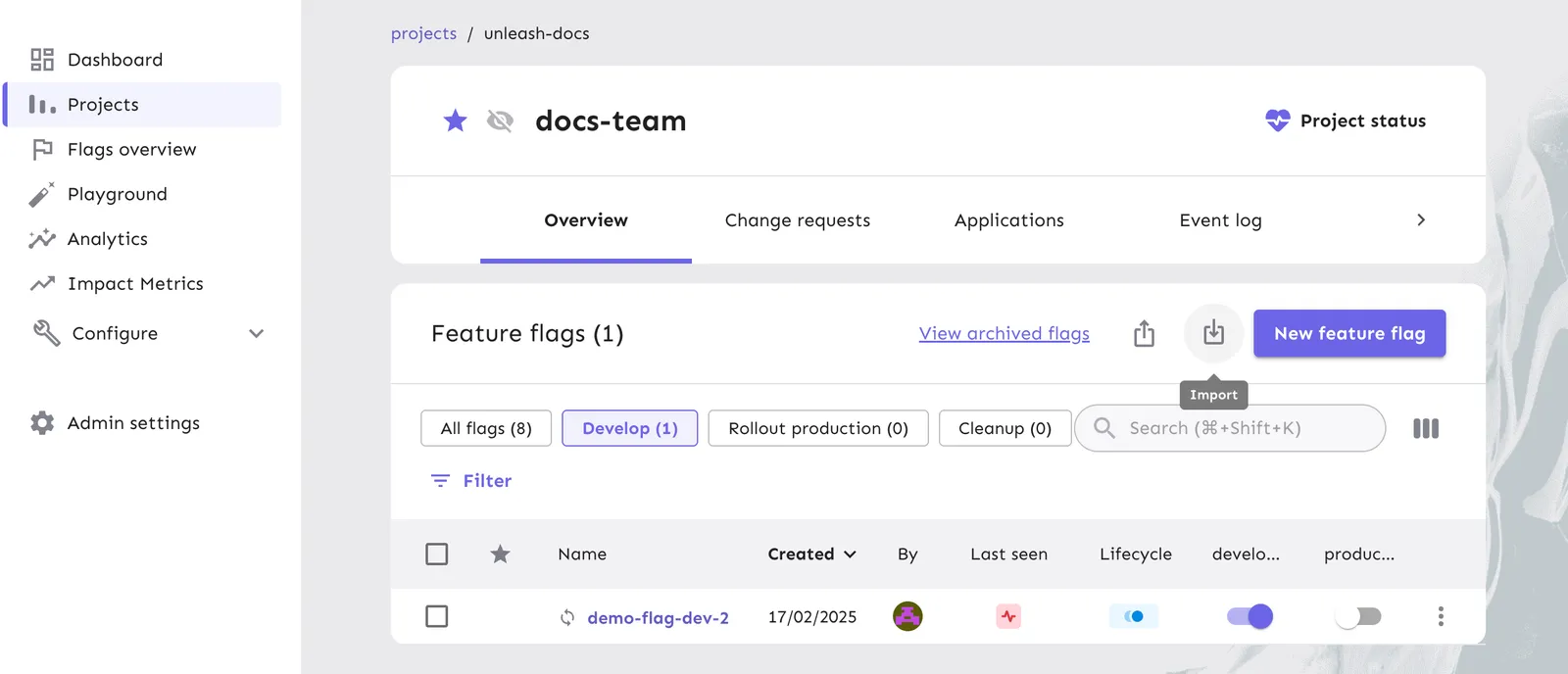
- Click Import.
- In the Import options section, select the target environment.
- Do one of the following:
- In the Upload file tab, click Select file and choose the exported JSON, or
- In the Code editor tab, paste the exported JSON into the editor.
- Click Validate.
Validate configuration
- Review any errors or warnings.
- Errors must be fixed before you can continue.
- Warnings do not block import, but review them carefully.
- If you see errors about segments or custom strategies, create those items in the target instance and restart the import.
- If you see errors about context fields or legal values, add or update those in the target instance and restart the import.
See the full list of validation rules here.
Finish import
When validation passes with no errors, you can commit the import by clicking Import configuration.
The target environment now contains the imported configuration. If change requests are enabled for the environment, Unleash creates a draft change request with all changes instead of applying them immediately.
Validation rules
Unleash enforces the following validation rules during import:
-
Context fields: If the import contains context fields with defined legal values, matching context fields must already exist in the target instance. The imported legal values must be a subset of the existing ones.
-
Segments: Segments referenced by name must already exist in the target instance. If not present, the import stops.
-
Dependencies: Parent features must already exist in the target instance or be included in the import file.
-
Custom strategies: If your import contains custom strategies, then custom strategies with the same names must already exist in the target Unleash instance. Note that Unleash doesn’t verify that the configuration parameters of the strategies match.
-
Existing features in other projects: If a feature exists in a different project on the target instance, the import is rejected.
-
Archived features: You can’t import any features that have already been archived on the target Unleash instance. You must either permanently delete those archived features from the target instance, or revive them.
Required permissions
To run an import you always need the Update feature flags permission. Depending on what your import changes, you may also need:
- Create feature flags
- Update tag types
- Create context fields
- Create activation strategies
- Delete activation strategies
- Update variants
- Update feature dependency
If change requests are enabled, permissions for activation strategies or variants are not required.
Import on startup
You can also import on startup by using an import file in a JSON format either through configuration parameters and environment variables.