

Change requests
Overview
Change requests allow you to require an additional approval step before any changes can be made in an environment. This functionality supports the “four-eyes principle”, ensuring compliance in industries with strict legal or regulatory requirements.
Change requests also allow you to group changes and apply them at a specific point in time.
Change requests can be enabled for a specific environment within a project, or configured globally for an environment across all projects. This allows you to differentiate your configurations across different environments, such as production and development.
You can require up to 10 approvals for a change request. When you add an approver to a change request, they are notified by email.
To track the state of your change requests in ServiceNow, use the ServiceNow integration.
Change request permissions
Anyone with project access can create a change request; however, only users with specific permissions can approve, apply, or skip them. None of the predefined roles have any change request permissions, so you must create custom project roles.
The skip change requests permission allows users to bypass the change request flow for environment-specific actions, such as enabling or disabling a flag or updating its activation strategies in that environment. With this permission in place, you can quickly turn a flag on or off in case you experience issues with a release. This permission alone does not grant access to any other resource, so the user still needs additional permissions, such as to turn a flag on or off.
The skip change requests permission applies only to environment-specific actions. It does not apply to feature-level actions that affect a flag across all environments, such as archiving or deleting a flag. In a project with change requests enabled, these actions must go through a change request, even for users who have the skip change requests permission.
Admin users also see the change request flow, but they can approve and apply their own changes.
Enable change requests for a project and environment
To enable change requests for a project, do the following:
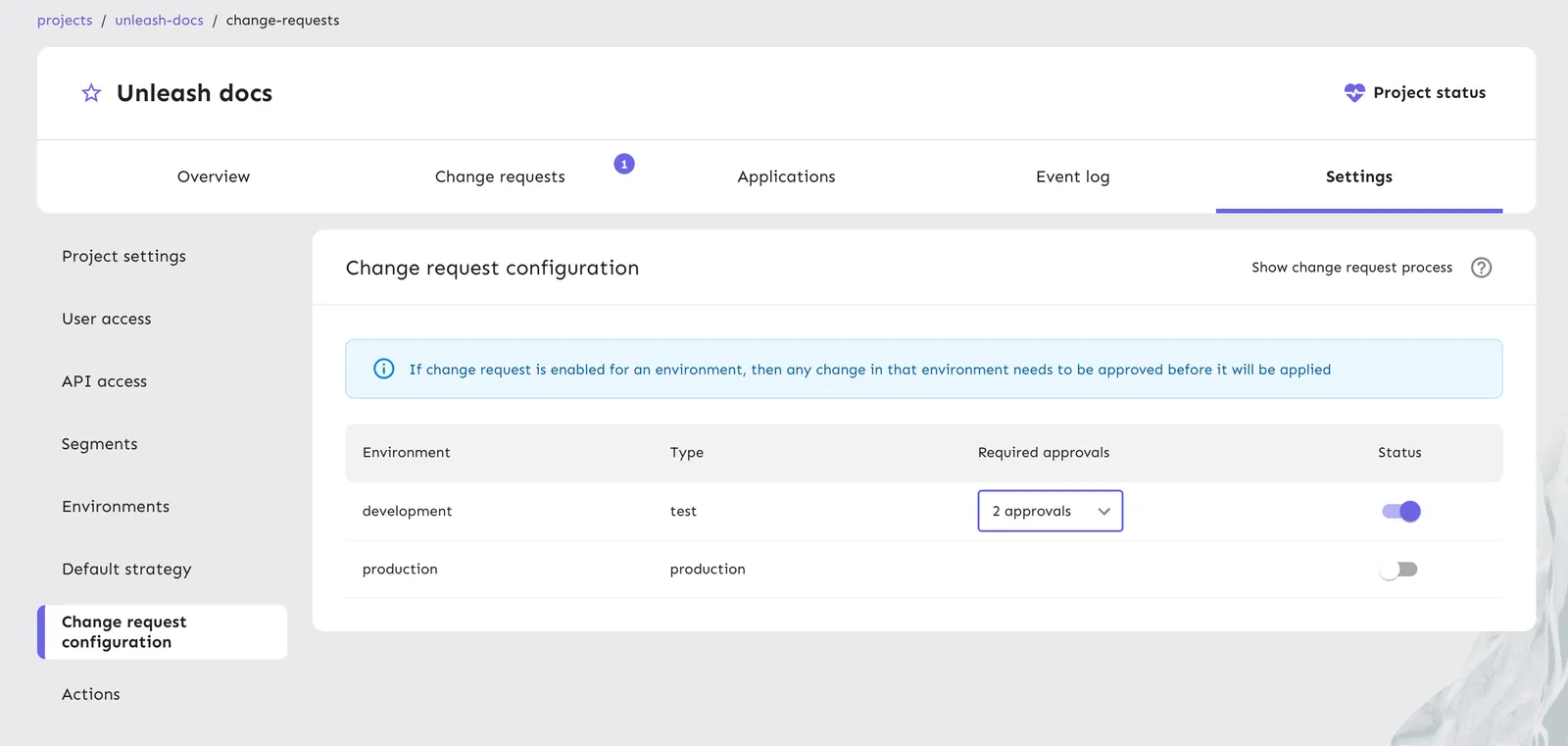
- Open the project and go to Settings > Change request configuration.
- Toggle Status for the environment where you want to enable change requests.
- Select the required number of approvals.
Change request flow
Once change requests are enabled for a project and environment, you cannot directly change the status and configuration of a feature flag. Instead, changes are grouped into a change request draft.
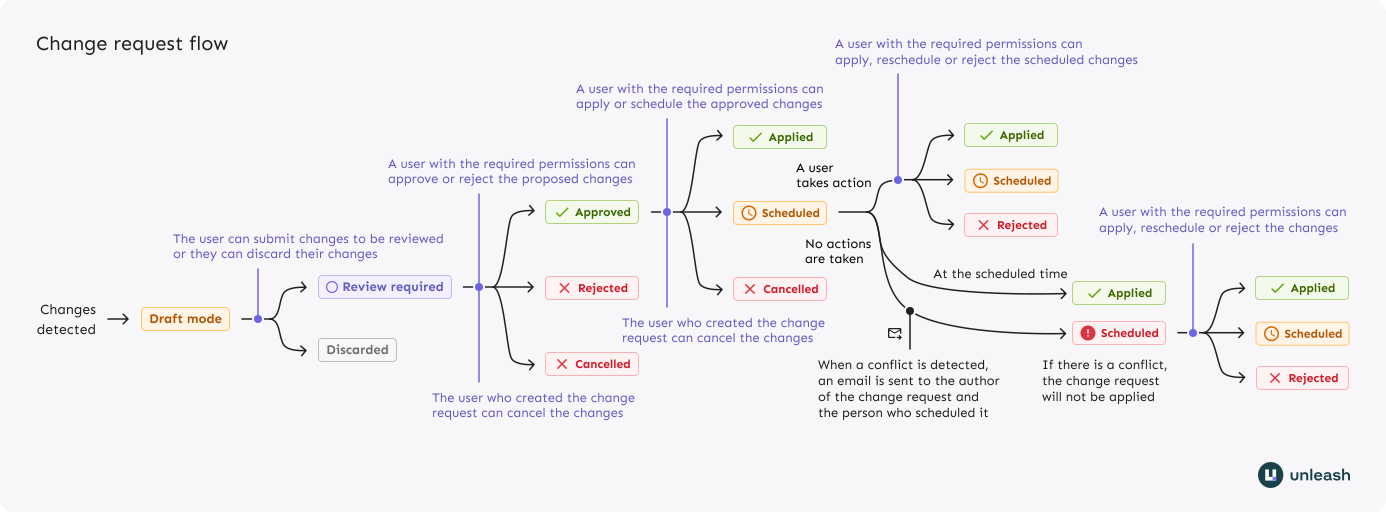
Once you make the first modification in an environment that has change requests enabled, any subsequent changes must be added to the same draft. This draft remains private to its author until it’s submitted for review. While a draft is active, a banner at the top of the screen informs the author that changes are pending.
A change request can go through the following states:
- Draft - The change request is pending, only visible to the author, and can still be edited.
- In review - The change request has been submitted for review. The author can still make edits, but doing so will revoke any existing approvals.
- Approved - The change request has received the required number of approvals.
- Scheduled - The change request is scheduled to be applied at a future time (assuming no conflicts).
- Applied - The changes have been successfully applied to the environment.
- Cancelled - The change request has been canceled by the author or by an admin.
- Rejected - The change request has been rejected by a reviewer or by an admin.
Once submitted, the change request appears in the project’s Change requests tab. From there, you can view details of the proposed changes, the current status of the request, and the next steps required. Users with sufficient permissions can approve or reject, and apply or schedule the changes.
View your change requests
The change request overview provides a centralized view of all your change requests across all projects in a single location. This helps you track and manage change requests without navigating between individual projects.
To access the overview, go to Change requests in the main navigation menu.
The overview table displays both open and closed change requests, allowing you to see the status and details of all changes at a glance.
You can filter the table to show specific subsets of change requests:
- Created by me: Shows only change requests that you created, helping you track your own pending changes.
- Approval requested: Shows only change requests where your approval has been requested, making it easy to see what requires your review.
Scheduled change requests
When a change request is approved, you can schedule it to be applied later. This allows you to group and apply them at a specific time, such as during a maintenance window or periods of low traffic.
Scheduled changes can be rescheduled, applied immediately, or rejected, but they cannot be edited or moved back to a previous state.
Scheduling changes using change requests gives you a centralized view of changes across multiple flags and strategies, making it easy to reschedule or reject them. However, potential conflicts can cause the scheduling to fail.
Alternatively, you can use constraints or segments with the DATE_AFTER operator. This approach avoids conflicts, ensures SDKs are aware of changes in advance, and allows them to apply the changes even if they temporarily fail to connect to Unleash.
Scheduling errors
Unleash suspends a scheduled change request if:
- The change request includes updates to a flag that has been archived or a strategy that has been deleted.
- The change request includes a strategy, segment, or variant that has been updated.
- The user who scheduled a change request is deleted from the users list before the scheduled time.
You must manually review suspended change requests to reschedule, apply, or reject them.
For any suspended or failed change requests, Unleash sends out email notifications to the change request author and to the person who scheduled the change request. Additionally, Unleash displays warnings for flag or strategy deletions that conflict with existing scheduled change requests.
If Unleash fails to apply a scheduled change request, the change request remains in the scheduled state. You can either reschedule and attempt to apply it again or reject it.
If a change request is scheduled and change requests are later disabled for the project or environment, the request will still be applied as scheduled. To prevent this, you must reject the scheduled change request.
Change requests for segments
Changes to project segments, unlike global segments, also go through the change request process.
While change requests are environment-specific, project segments are not. For this reason, Unleash allows you to attach segment changes to any environment where change requests are enabled. By default, Unleash selects the first available environment with change requests enabled, prioritizing production environments.
Only Admin users can bypass the change request process for project segments through API calls.
Environment-level change requests
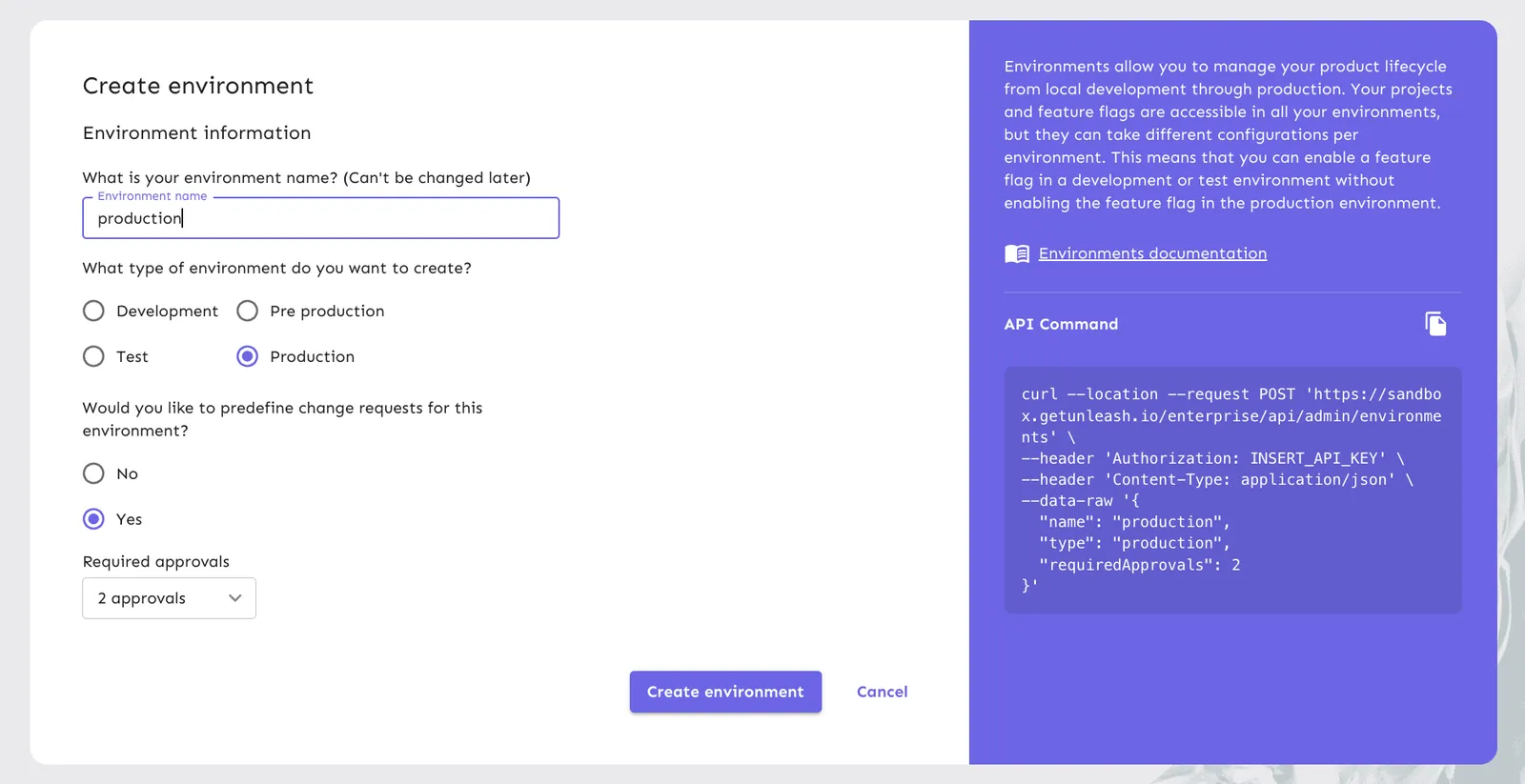
You can preconfigure change request requirements at the environment level. When configured, all new projects automatically inherit these approval requirements for the specified environments.
You can use environment-level change requests in two ways:
- As defaults: Set default approvals per environment, but allow project Owners and users with project update permissions to override the defaults within their projects.
- As enforced requirements: Set mandatory approvals for a given environment across all projects. To fully enforce this in a project, ensure that the project has no Owner or users with project update permissions—this prevents any change request modifications at the project level.
You can predefine environment-level change requests when creating or editing an environment in Configure > Environments.
Change request preview
To verify a change request, you can preview the changes in Playground by clicking Preview changes. You can adjust Unleash context, but the project and environment remain fixed as they are determined by the change request.
You can only preview a change request in In Review, Approved, or Scheduled states.