
Stickiness
Stickiness is how Unleash guarantees that the same user gets the same features every time. Stickiness is useful in any scenario where you want to either show a feature to only a subset of users or give users a variant of a feature.
Calculation
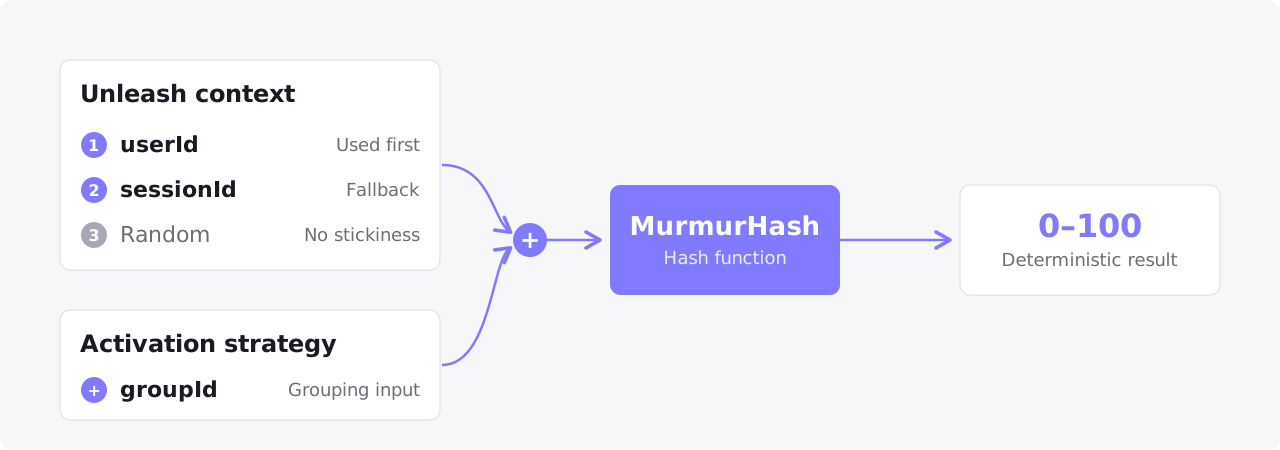
To calculate stickiness, Unleash hashes a context field together with the strategy’s groupId into a number between 0 and 100 using the MurmurHash hash function. This number determines whether a user sees a specific feature or variant. Because the process is deterministic, the same input always produces the same number.
Context field selection
By default, Unleash uses the first of these context fields that is available:
userIdsessionId
If neither field is available, the calculation returns a random number and stickiness is not guaranteed.
Group ID
Unleash combines the selected context field with the strategy’s groupId before hashing. By default, the groupId is the name of the feature flag, giving each flag its own independent distribution, so the same user can fall inside the rollout for one flag and outside it for another. You can set the same groupId on multiple flags to correlate their rollouts. You can also use the groupId as a stickiness reset mechanism: changing it changes the hash input, so all users are reassigned; see Reshuffling users.
Consistency
Because the number assigned to a user won’t change, Unleash also guarantees that a user will keep seeing the same features even if certain other parameters change.
Changing the rollout percentage
When using the gradual rollout activation strategy, any user whose number is less than or equal to the rollout percentage sees the feature:
- Increasing the percentage keeps existing users in the rollout and adds new ones.
- Decreasing the percentage removes users whose number is above the new percentage; users at or below it keep seeing the feature.
- Returning to a previous percentage brings back the same users. For example, if you roll out to 25%, reduce to 0%, and later return to 25%, the same set of users sees the feature again, as long as the strategy’s
groupIdand the provided context stay the same.
Reshuffling users
To reshuffle which users are included in a rollout, change the strategy’s groupId. This changes the input to the stickiness calculation, so users are assigned new numbers.
Custom stickiness
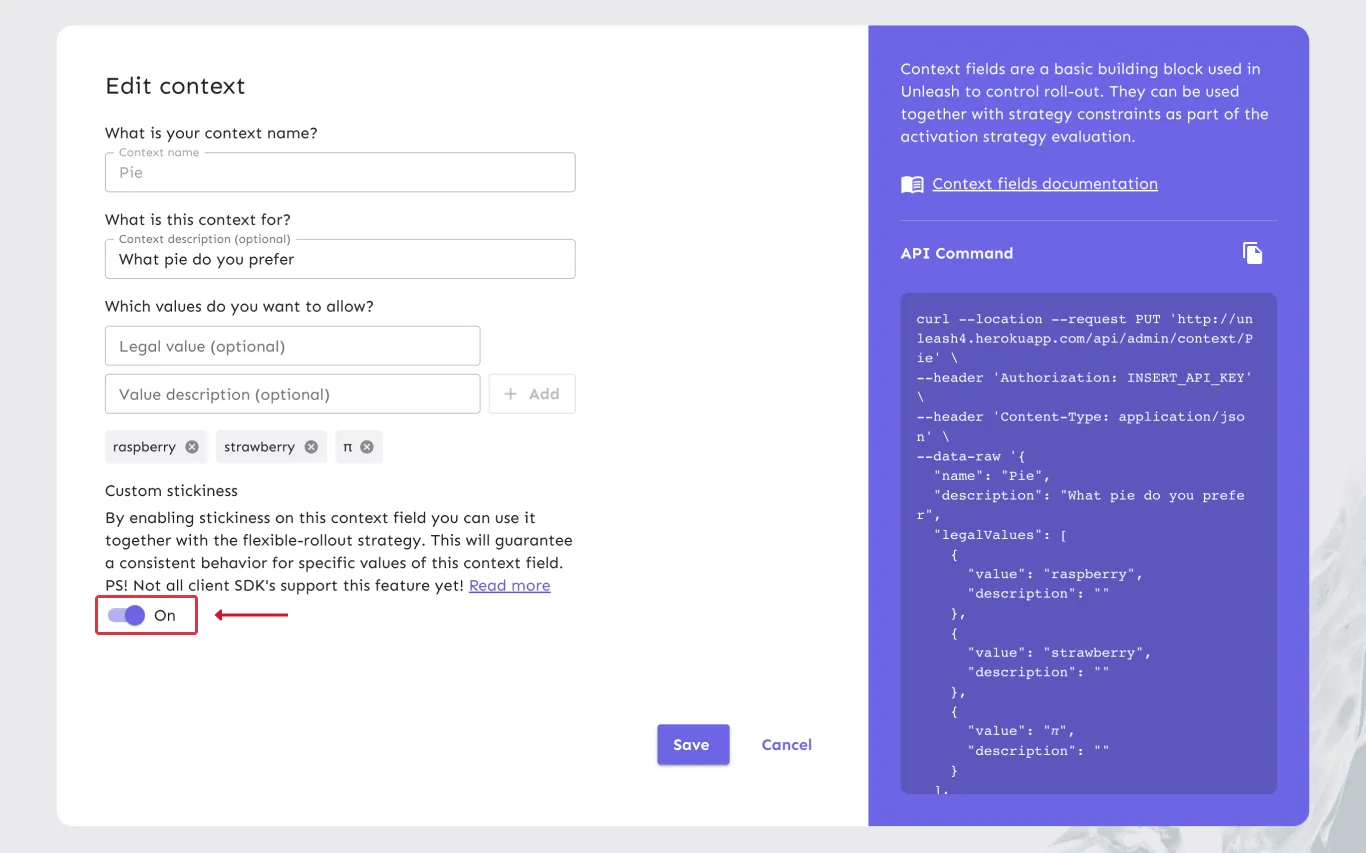
When using the gradual rollout strategy or feature flag variants, you can use parameters other than the user id to calculate stickiness. More specifically, you can use any field, custom or otherwise, of the Unleash Context as long as you have enabled custom stickiness for these fields.
Enabling custom stickiness
To enable custom stickiness on a field, navigate to the Create Context screen in the UI and find the field you want to enable. There’s a “Custom stickiness” option at the bottom of the form. Enable this flag and update the context field by pressing the “Update” button.
Project default stickiness
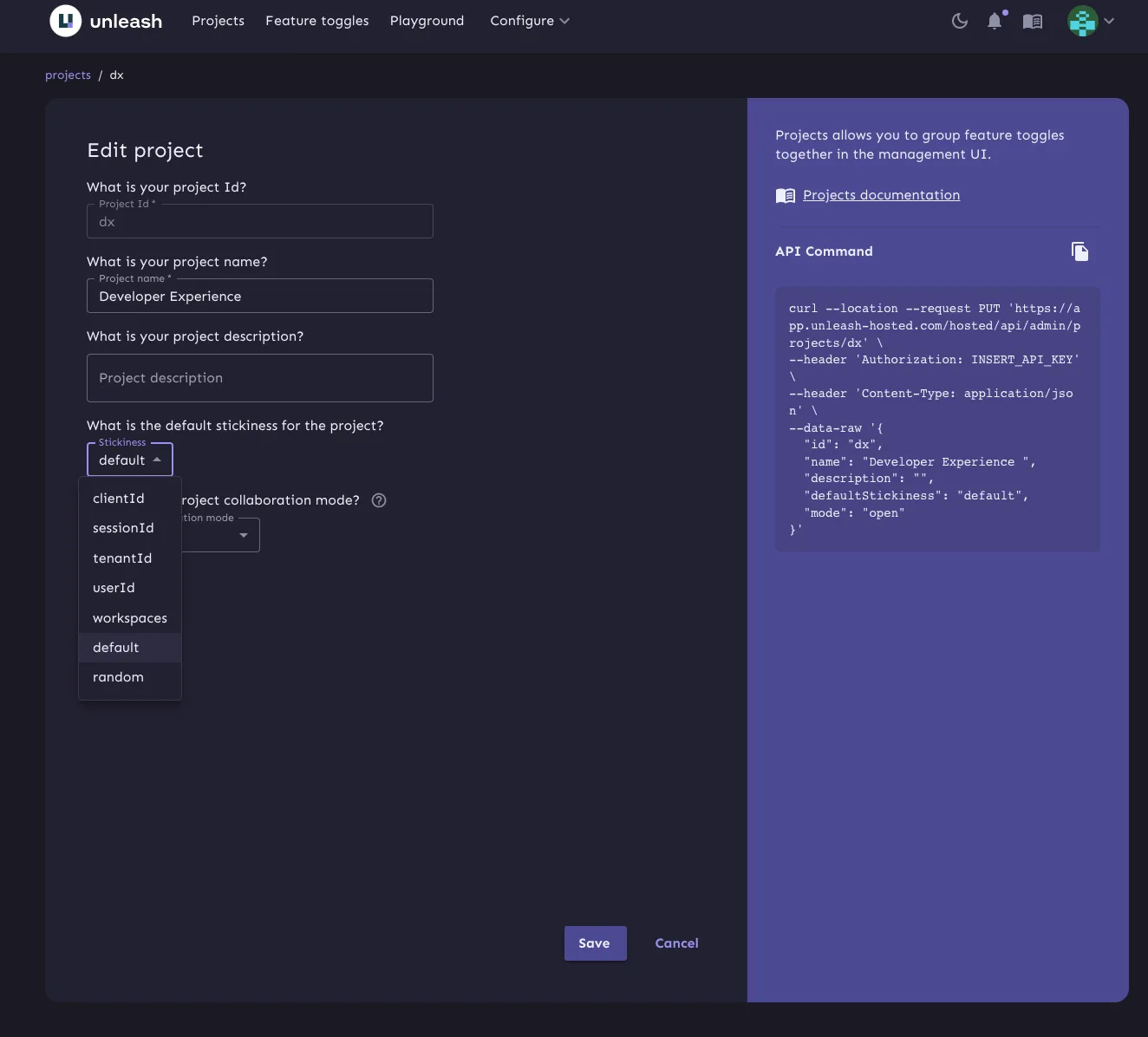
Each project in Unleash can have its own default stickiness context field. Whenever you add a gradual rollout strategy or variants to a feature in that project, Unleash will use the configured context field as the initial value.
Only context fields that have the custom stickiness option turned on can be used as default stickiness fields.
If you don’t specify a default custom stickiness, the project will use the “default” stickiness option, which works as described in the calculation section.
You can configure project default stickiness when you create a project or by editing the project later.