For AI agents: a documentation index is available at the root level at /llms.txt and /llms-full.txt. Append /llms.txt to any URL for a page-level index, or .md for the markdown version of any page.
13.5kProductPricingSign inStart free trialBook a demo
DocsAPIsSDKsEnterprise EdgeGuidesAcademyRelease notes
    • Home
  • Get started
    • Quickstart
    • Introduction to feature flags
    • Unleash architecture overview
  • Core concepts
    • Overview
    • Import and export
      • Unleash hosting options
        • Integrations overview
        • Datadog
          • Jira Cloud plugin installation
          • Jira Cloud plugin usage
        • Slack
        • Microsoft Teams
        • Terraform
        • Webhook
      • Developer Toolbar

Unleash reduces the risk of releasing new features, drives innovation by streamlining the software release process, and increases revenue by optimizing end-user experience. While we serve the needs of the world's largest, most security-conscious organizations, we are also rated the “Easiest Feature Management system to use” by G2.

GitHubGitHubLinkedInLinkedInX (Twitter)X (Twitter)SlackSlackStack OverflowStack OverflowYouTubeYouTube

Server SDKs

  • Node.js
  • Java
  • Go
  • Rust
  • Ruby
  • Python
  • .NET
  • PHP
  • All SDKs

Frontend SDKs

  • JavaScript
  • React
  • Next.js
  • Vue
  • iOS
  • Android
  • Flutter

Feature Flag use cases

  • Secure, scalable feature flags
  • Rollbacks
  • FedRAMP, SOC2, ISO2700 compliance
  • Progressive or gradual rollouts
  • Trunk-based development
  • Software kill switches
  • A/B testing
  • Feature management
  • Canary releases

Product

  • Quickstart
  • Unleash architecture
  • Pricing
  • Product vision
  • Open live demo
  • Open source
  • Enterprise feature management platform
  • Unleash vs LaunchDarkly

Support

  • Help center
  • Status
  • Changelog
Made in a cosy atmosphere in the Nordic countries.Copyright © 2026 Unleash
LogoLogo
13.5kProductPricingSign inStart free trialBook a demo
On this page
  • Using the plugin
Integrate and deployIntegrationsJira Cloud

Jira Cloud Integration - Usage

||View as Markdown|
Was this page helpful?

Last updated May 11, 2026

Previous

App for Slack

Next
Built with

With the Unleash Jira Cloud Plugin you can create, view and manage Unleash feature flags directly from a Jira issue.

The plugin also shows you current status of connected flags.

Using the plugin

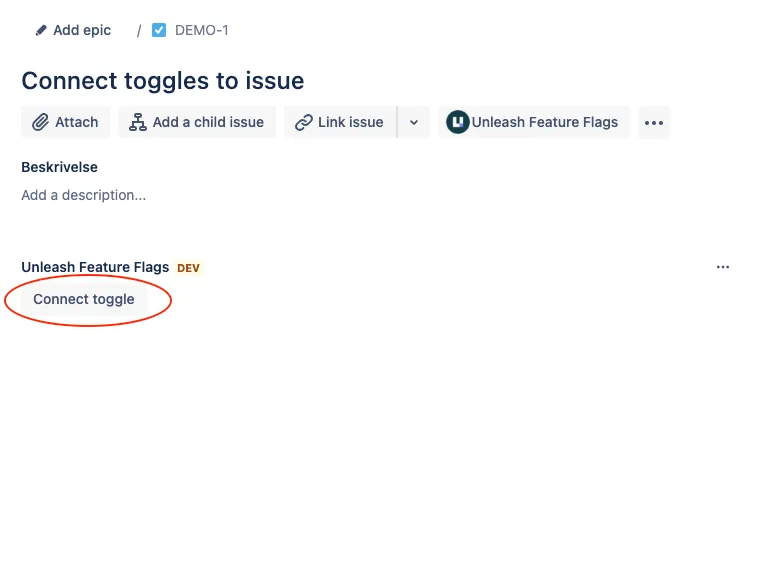
To use the plugin, you’ll need to create an issue or use an existing one. Once the issue is saved and you open up the issue panel, you’ll be greeted with a button to activate the Unleash plugin for that issue.
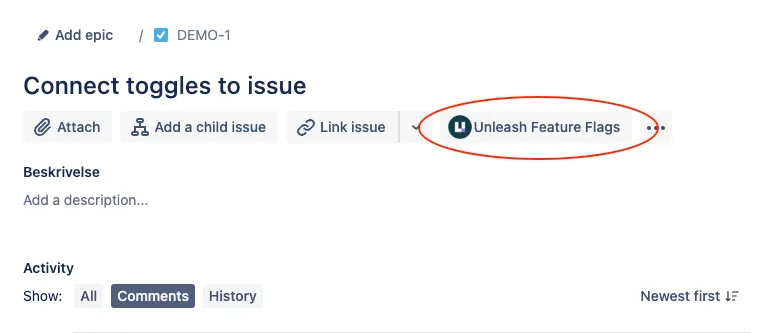
Activating the Unleash plugin

Connecting a flag to an issue

Connecting a feature flag using the Unleash plugin

Use the issue’s “connect toggle” button to open a dialog.

There are a few steps to connect a flag:

  1. Select the Unleash project that contains the flag:
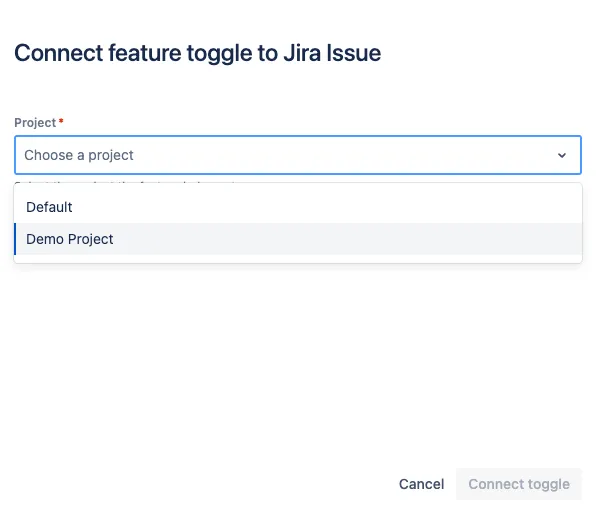
Jira Cloud: connect feature flag form. The project selection dropdown contains all Unleash projects

  1. Use the “create new toggle” option to choose whether you want to add an existing flag or create a new one.
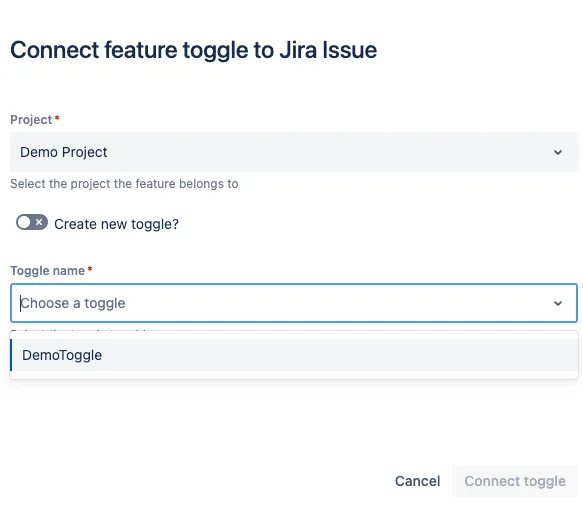
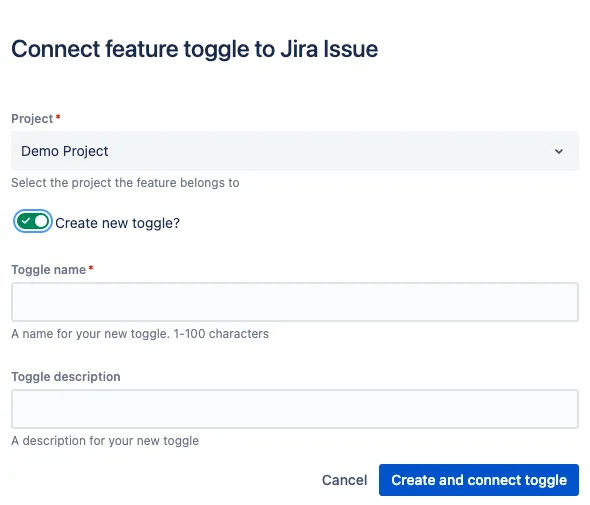
Adding an existing flag using the Unleash plugin

Creating a new flag using the Unleash plugin

Flag status as part of Issue view

Once you’ve connected at least one flag to an issue, the Unleash plugin will list the current status of each environment for that flag. If the current user is allowed to edit the issue, they can also enable or disable environments directly from Jira.
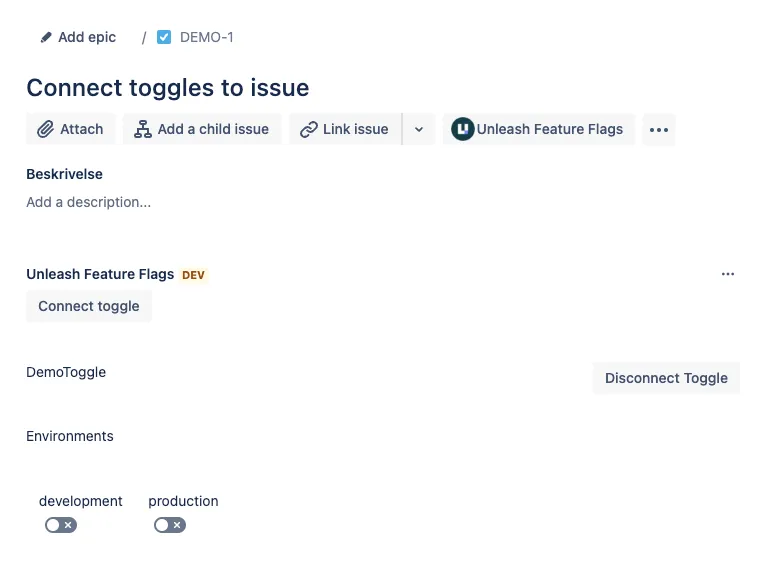
Example of a Jira Cloud issue with a connected flag

Change Requests

The plugin respects Unleash’s change requests. If change requests are turned on in the connected project and the selected environment, the plugin will ask whether you want to create a change request or not.

If you already have an active change request for that project and that environment, the changes will be added to your existing change request.

If you confirm that you would like to open a change request, then the plugin will create one for you and present a confirmation dialog.
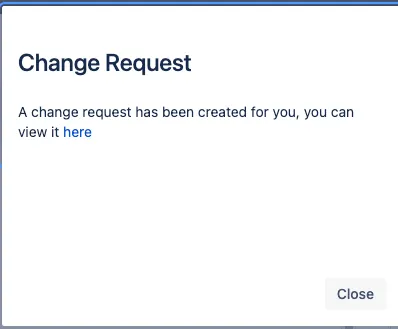
Creating a change request using the Unleash plugin

When the Change Request has been reviewed and applied in Unleash, the flag will show the requested state after the next refresh of the issue and flag status page.

Disconnecting flag from Issue

If a flag is no longer relevant for your Jira Issue, you can disconnect it using the “disconnect toggle” button. This button is only available if your user has edit permissions for the Jira issue.
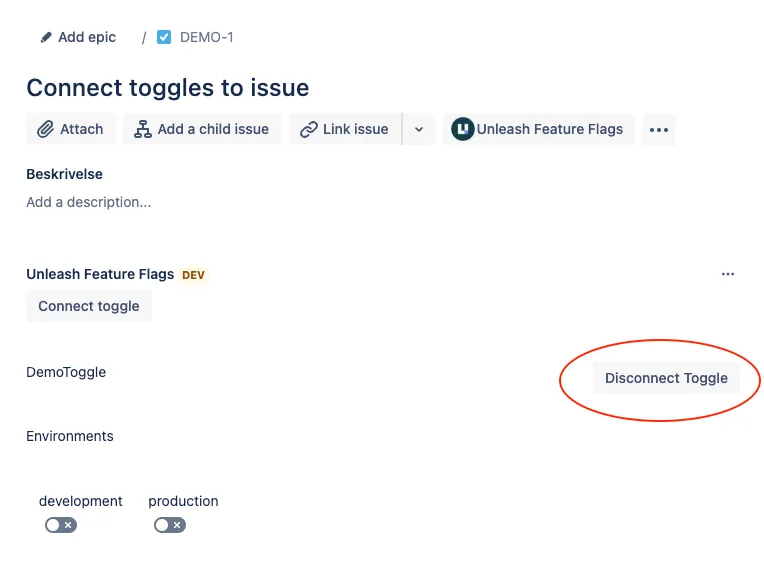
Jira Cloud: issue with a connected flag. The 'disconnect flag' button (highlighted) is displayed next to the flag's name.

The flag will be disconnected immediately. However, the plugin will not delete the flag from Unleash, so you can still reconnect your Jira issue to the same flag using the “Connect to existing flag” functionality