

Activation strategies
Overview
An activation strategy determines who should get a feature. They allow you to enable and disable features for certain users without having to redeploy your application. For example, you can release features only to users with a specific user ID, email, IP address, and more. You can implement gradual rollouts to specific user segments, for example, those on a specific subscription plan or region. You can also use them to schedule feature releases or make features available for a limited time.
An activation strategy is assigned to one feature flag in one environment. A feature flag is enabled in a given context (for example, user or application) if at least one of its activation strategies resolves to true.
When adding a strategy to a flag, you can choose from several strategy types, such as a gradual rollout. Depending on the strategy type, you can further refine the configuration using rollout percentage, targeting, and variants.
Feature flags can have multiple activation strategies. Unleash evaluates each strategy independently, enabling the flag if any resolves to true. This behavior is equivalent to the OR logical operator.
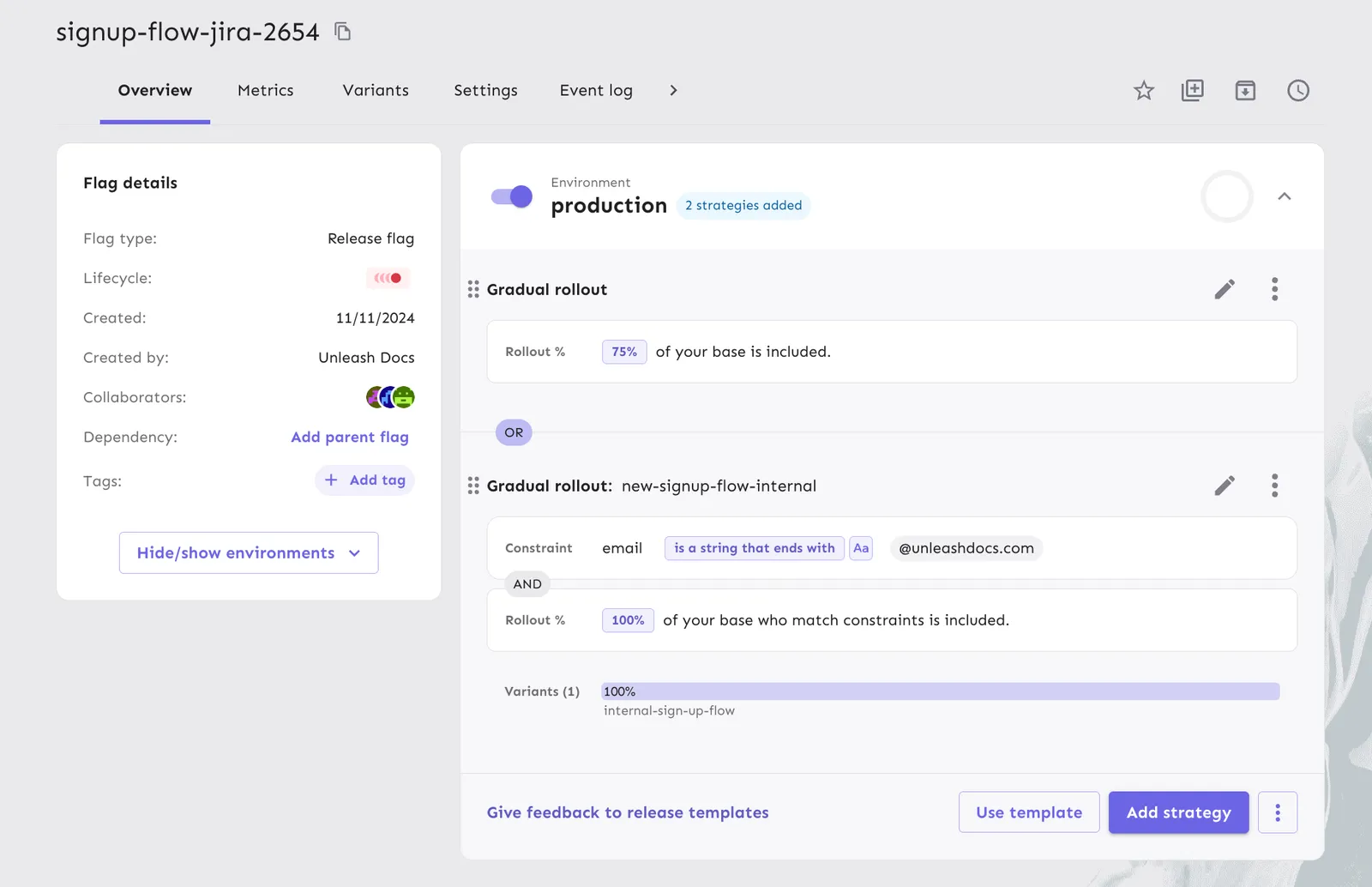
For example, to roll out a feature to 75% of users while granting access to internal users, you can add two activation strategies as follows:
- Gradual rollout to 100% with a constraint on the email address.
- Gradual rollout to 75% (of all users).
Rollout percentage
The rollout percentage determines the proportion of users exposed to a feature. It uses a normalized MurmurHash of a user’s unique ID, ensuring consistent and random feature distribution. Stickiness maintains a stable user experience across sessions.
Targeting
Segmentation and constraints allow you to define conditions for your activation strategies so that they will only be evaluated for users and applications that match those criteria. Constraints are individual conditional statements, while segments are a reusable set of constraints that you can apply to multiple strategies.
Constraints
Constraints are conditional rules that determine whether a strategy applies, based on fields from the Unleash context. Constraints can reference both standard context fields and custom context fields.
When an activation strategy has multiple constraints, then every constraint must be evaluated to true for the strategy to be evaluated. This behavior is equivalent to the AND logical operator.
The number of constraints per strategy and the number of values per constraint are limited by your plan; see Resource limits for the exact limits. If you need to target a large audience, avoid long value lists and use higher-level attributes instead; see Managing constraints for practical guidance.
You can use Playground to experiment with different strategy and constraint configurations and how they would evaluate in a given context.
For example, if you have two constraints: one where the user email must have the domain “@mycompany.com” and one where the user must have signed up for a beta program, then the strategy would only be evaluated for users with “@mycompany.com” emails that have signed up for the beta program.
Constraint structure
A constraint has three parts:
- A context field: The context field to use for evaluation.
- An operator: One of the constraint operators.
- Values: A value or list of values to use in the evaluation of the constraint.
These parts turn the constraint into an expression that evaluates to true or false. A constraint evaluates to false if the context field is missing from the Unleash context, or if its value can’t be interpreted by the operator, for example a non-numeric value with a numeric operator or an invalid IP address with the IP address operator. Here are a few example constraints:
Constraint operators
Constraint operators help you define the conditional statements that get evaluated as part of the constraint. Operators are grouped into basic operators and advanced operators.
All constraints can be negated, except constraints that use the regex operator. For example:
Basic operators
Advanced operators
Advanced operators require a backend SDK version that supports them. See SDK compatibility for the minimum version per SDK. Frontend SDKs have no minimum version, because Unleash or Unleash Edge evaluates constraints for them.
Numeric operators
Numeric operators compare the numeric value of context fields with the provided value. Numeric operators only accept single values.
Date and time operators
All date and time operators require the currentTime context field, and the currentTime context field can only be used with date and time operators. With these operators, you can enable a feature before or after a specified time or make it available for a specific time span by combining the two operators.
Date and time operators only support single values.
String operators
String operators accept multiple values and can be set to be case-sensitive or case-insensitive.
Versioning (SemVer) operators
SemVer operators are used to compare version numbers such as application versions or dependency versions. SemVer operators only support single values.
The value must start with and contain at least major, minor, and patch versions. For example, 1.2.3. Optionally, you can also define pre-release version information by adding a hyphen and series of full-stop separated identifiers after the patch version. For example, 1.2.3-rc.2. Values with pre-release versions are considered less than versions without a pre-release in accordance with the SemVer specification, item 11.
Regex operator
BetaThe regex operator matches the context field against a regular expression. Use it when the other string operators aren’t expressive enough, for example to match an ID format, a set of email domains, or a naming pattern for hosts or applications.
The operator accepts a single value: the regular expression. Unleash uses the RE2 regular expression dialect, and every SDK evaluates the expression with an RE2 implementation rather than the language’s built-in regex engine, so a pattern behaves the same everywhere. RE2 guarantees linear-time matching, and some features of other dialects are therefore unavailable, including lookaheads, lookbehinds, and backreferences. Unleash rejects an invalid expression when you save the constraint.
The expression matches if it is found anywhere in the context field value. To match the whole value, anchor the expression with ^ and $. Matching is case-sensitive by default. To ignore case, select the case-sensitivity toggle, labeled Aa, next to the operator, or use the RE2 inline flag (?i) in the expression itself.
Regex constraints cannot be negated. To exclude values that match a pattern, add a separate strategy or use a segment with the constraints you want to keep.
When you add a regex constraint in the Admin UI, use Test regex to enter sample values and check whether they match before you save. To try the constraint against a full context, use the Playground.
IP address operator
BetaThe IP address operator checks whether the context field is an IP address that falls within any of the provided IP addresses or ranges. Use it to target traffic from an office network, a VPN, a partner’s address space, or a set of known servers.
The operator accepts multiple values. Each value is either a single IP address, such as 192.168.1.10, or a range in CIDR notation, such as 192.168.1.0/24. Both IPv4 and IPv6 are supported, for example 2001:db8::/32. Unleash rejects a value that isn’t a valid IP address or CIDR range when you save the constraint. When you enter a CIDR range in the Admin UI, Unleash shows the first and last address in the range so you can confirm it covers what you expect.
You can use the operator with any context field that holds an IP address, such as remoteAddress. An IPv4 address never matches an IPv6 range, and vice versa. IP address constraints can be negated to exclude a range.
Constraints best practices
Backend SDKs fetch the full feature flag configuration associated with your API key from Unleash. You can use API keys scoped to specific projects or environments to optimize payload size.
However, every value that you add to your feature flag constraints, increases the payload size. We recommend avoiding large constraint value lists. For example, instead of adding many user IDs or emails to the constraint value list, consider what properties those users share. This typically helps define and use a custom context field instead.
Add an activation strategy
To add an activation strategy with a constraint to a feature flag, do the following:
- Open the Admin UI and go to the feature flag you’d like to add a strategy to.
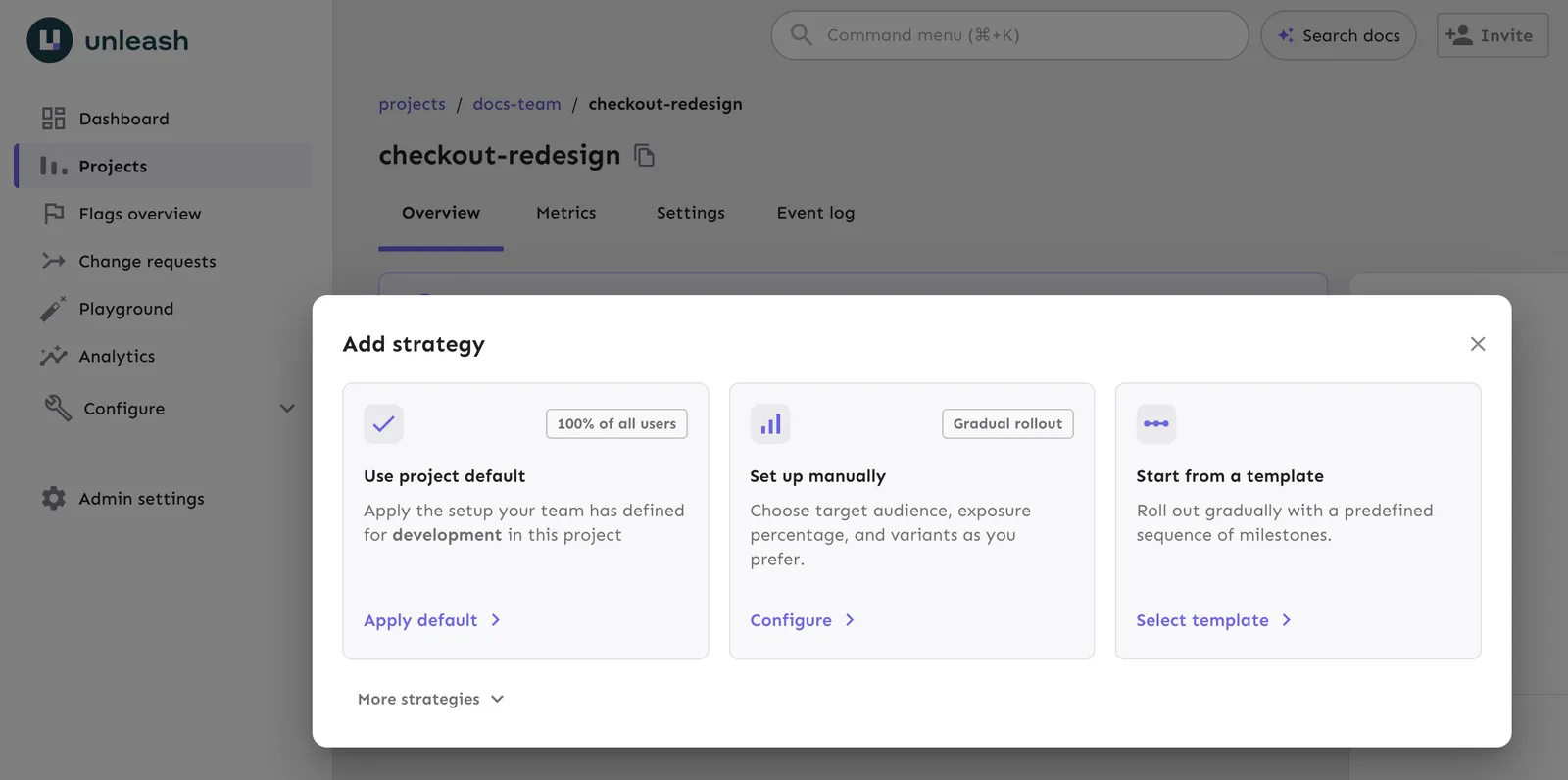
- Select the environment you want to configure and click Add strategy.
- Under Set up manually, click Configure.
- In the Targeting tab, go to the Constraints section, and click Add constraint.
- Select a context field to constrain on, for example,
email. - Set your desired operator, for example,
STR_ENDS_WITH. - Enter a value that the operator should evaluate, such as
@user.com, and click Add values. Then click Done. - Click Save strategy.
Client-side implementation
Activation strategies are defined on the server but implemented client-side. The client determines whether a feature should be enabled based on the activation strategies.
All backend SDKs and Unleash Edge implement the default activation strategy. The frontend SDKs do not perform evaluations themselves. Instead, they rely on Unleash Edge to handle the implementation and evaluation.
When using strategies with constraints, the client must provide the current Unleash context to the flag evaluation function for the evaluation to be done correctly. All official Unleash client SDKs support the option to pass dynamic context values to the isEnabled() function (or the SDK’s equivalent).
If the constraint uses a standard Unleash context field, set the context field to the required value. If the constraint uses a custom context field, use the Unleash context’s properties field. Use the name of the custom context field as a key and set the value to your desired string.
Unleash SDKs expect all context values to be strings. If you use an operator that acts on non-string values, such as numeric operators or date and time operators, the SDKs attempt to convert the string into the expected type. If the conversion fails, the constraint evaluates to false.
Strategy types
When you add an activation strategy to a flag, the Add strategy dialog offers the following options:
- Use project default: Apply the default strategy that your team has defined for the environment in this project.
- Set up manually: Configure a gradual rollout with your own rollout percentage, targeting, and variants.
- Start from a template: Roll out with a predefined sequence of milestones from a release template.
- More strategies: Add an advanced strategy or a custom strategy.
Default strategy
The default activation strategy is a type of gradual rollout strategy that you can configure per project and environment. It defines your most common configuration and is available as a quick option when adding strategies to flags.
Configure the default strategy
- Go to the project where you want to configure the default strategy.
- Open Settings and select Default strategy.
- Choose the environment you want to edit.
- Click Edit default strategy for
<environment name>. - Configure your rollout, targeting, and variants, then click Save strategy.
Add the default strategy to a flag
To add your project’s default strategy, click Add strategy, then under Use project default, click Apply default. The option shows the rollout percentage of the default strategy for the environment, for example 100% of all users. In environments without an active strategy, you’ll also see a suggested option to apply your default strategy directly.
Gradual rollout
Roll out a feature to a percentage of your users while ensuring each user has a consistent experience. You can combine gradual rollout with targeting rules to support most rollout scenarios. To turn a feature on for your entire user base, set the rollout percentage to 100%.
To add a gradual rollout, click Add strategy, then under Set up manually, click Configure.
Release templates
Release templates are a collection of activation strategies that let you reuse predefined rollout configurations across multiple flags. They make it easier to standardize rollout processes and reduce manual setup.
To add a strategy from a release template, click Add strategy, then under Start from a template, click Select template.
Advanced strategies
Advanced strategies target a feature at specific IP addresses or hostnames. To add one, click Add strategy, open More strategies, and select the strategy under Advanced strategies.
IPs
The remoteAddress strategy activates a feature flag for specific IP addresses.
Parameters:
IPs– List of IPs to enable the feature for.
Hosts
The applicationHostname strategy activates a feature flag for specific hostnames.
Parameters:
hostNames– List of hostnames to enable the feature for.
Custom strategies
Whenever possible, we recommend using a standard gradual rollout strategy with strategy constraints instead of defining a custom strategy. They offer similar flexibility without requiring custom code distribution within your SDKs.
Custom activation strategies let you define your own activation strategies to use with Unleash. To add a custom strategy to a flag, click Add strategy, open More strategies, and select the strategy under Custom strategies.
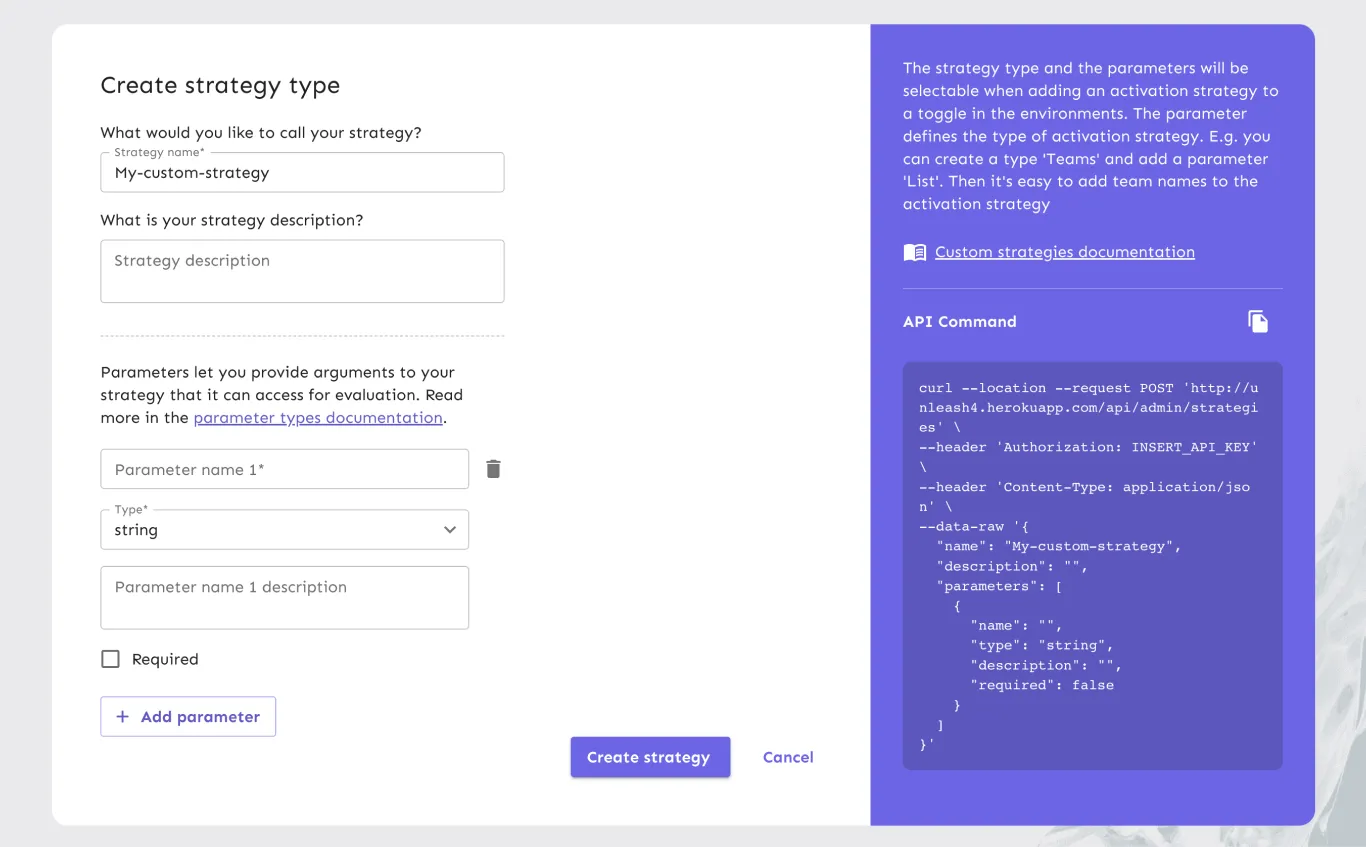
When creating a custom strategy, you must set a name, optionally add a description, and define one or more parameters. The parameters are passed as arguments to your activation strategy and are available to your custom implementation in the SDK.
Parameters
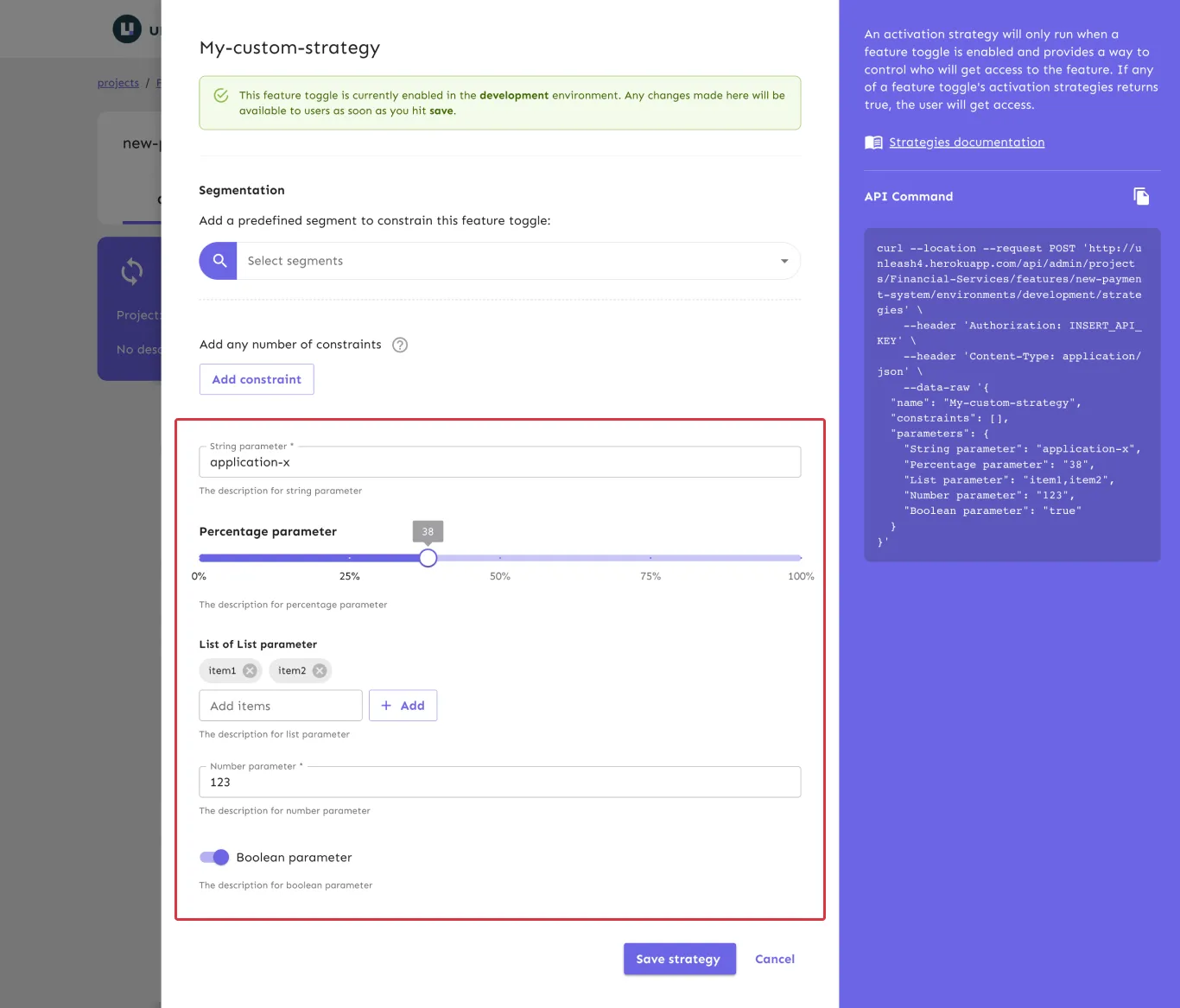
Parameters define the inputs available to your strategy. Each parameter can be marked as required or optional. This setting helps users understand which fields they must complete, but users can still save the strategy without filling out required parameters.
Each parameter includes:
- A name: Must be unique within the strategy.
- An optional description: Explains the purpose or expected format.
- A type: Determines the input field shown in the Admin UI and the value type in your code.
Each parameter type affects both the Admin UI control and the value representation in the JSON payload returned from the Unleash server. Actual data types depend on your SDK’s language.
By default, all parameter values are empty strings: "". If you don’t set a value, the SDK receives an empty string.
Implementation
If the strategy isn’t implemented in your backend SDK, all checks using it return false because the SDK doesn’t recognize the strategy.
Custom strategies are defined on the Unleash server, but implemented in your backend SDK. All official Unleash backend SDKs provide a way to implement custom strategies. When implementing your custom strategy, you have access to both the strategy parameters and the Unleash context. See your SDK’s documentation for language-specific examples.